Before you start
- Your download is a zip with two files. Double-click it to open it. Start with the one marked with examples to see how everything works, then use the blank one for your business.
- Open the file in Microsoft Excel. Using Google Sheets? Upload it to Google Drive, then open it with Google Sheets.
- Start on the Start Here tab. It has the same steps, right inside the file.
- The sample data is there so you can see how everything works. Type over it with your own when you're ready.
Here's how to enter your supplier's prices once, then figure any job's materials, order, and customer price in about 2 minutes.
1Enter your supplier's prices (one time, about 5 minutes)
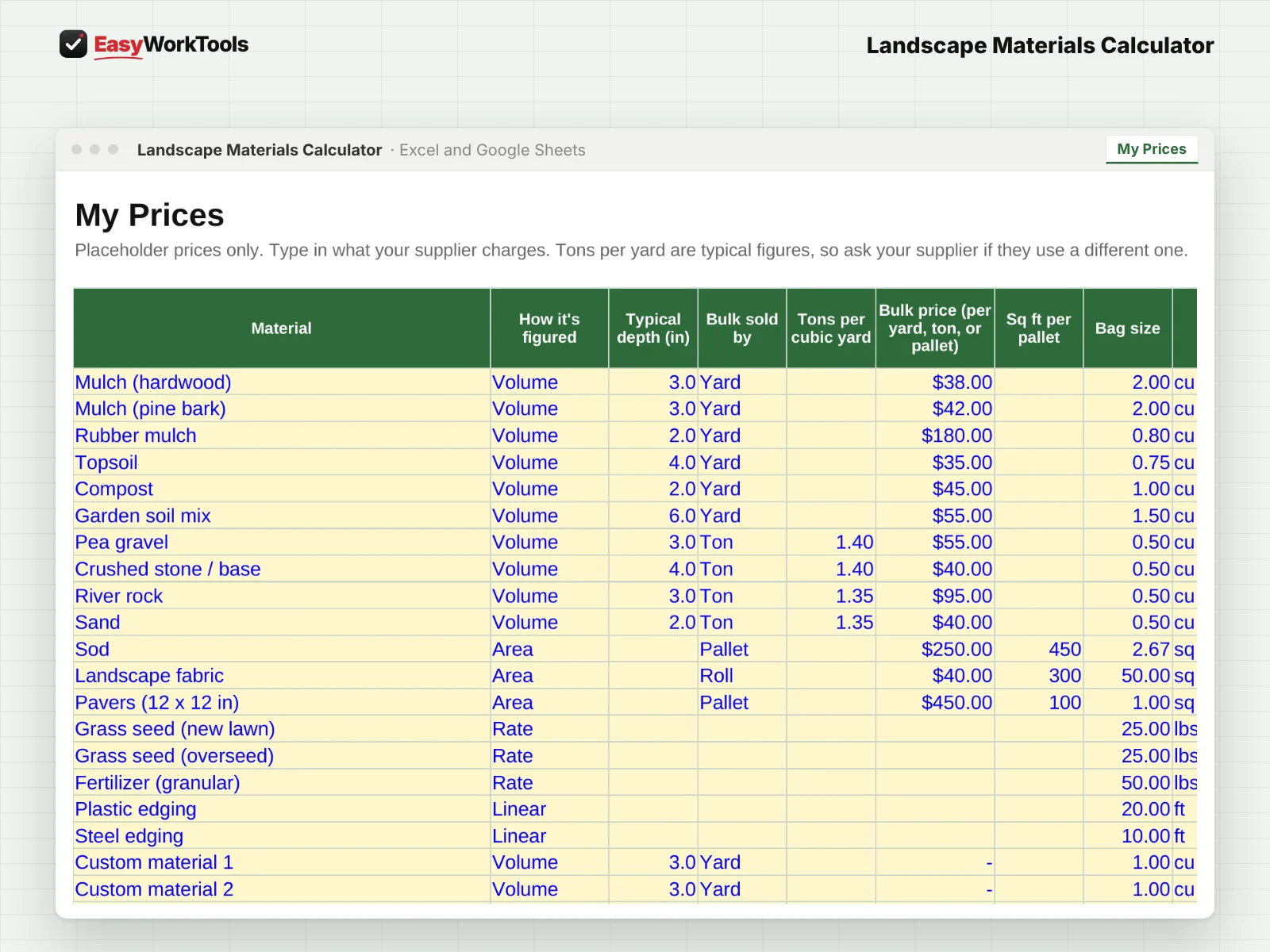
- Open My Prices. Call your supplier or check their website and type in your local prices. The example prices are placeholders only.
- For each material, check how bulk is sold (by the yard, ton, pallet, or roll), the bag size, and the price per bag.
- Set your delivery fee and the markup you add to materials.
2Figure a job (about 2 minutes)
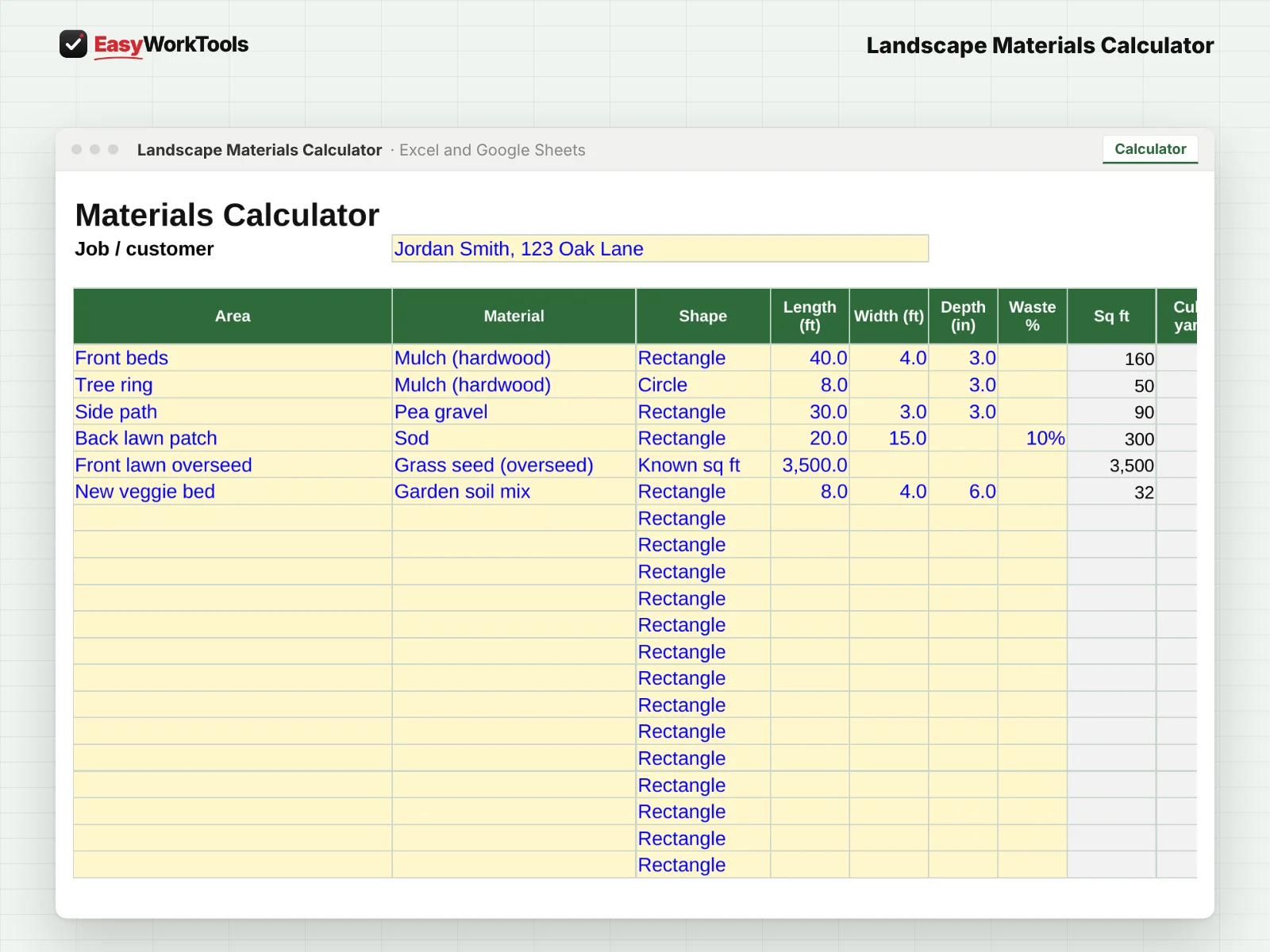
- Open Calculator and type the job or customer at the top.
- Add one line for each area: front beds, the back path, a new lawn. Pick the material and the shape (Rectangle, Circle, Triangle, or Known sq ft), then type the measurements in feet.
- Depth fills in a typical amount for that material. Type over it if this job needs more or less. Not sure? Check the Depth Guide tab.
- Add a waste percentage for spills, settling, and uneven ground. 5% to 10% is common.
- Read across each line: how much to order, bags vs. bulk, which is cheaper, your cost, and the customer price.
3Check the job summary and shopping list
- Scroll to Job Summary at the bottom. It adds up the whole job, delivery included, and tells you if skipping delivery would be cheaper.
- The Shopping List groups everything by material, so you know exactly what to tell the supply yard.
- Most suppliers sell bulk in half-yard steps, so order amounts round up to the next half yard.
4Send the estimate
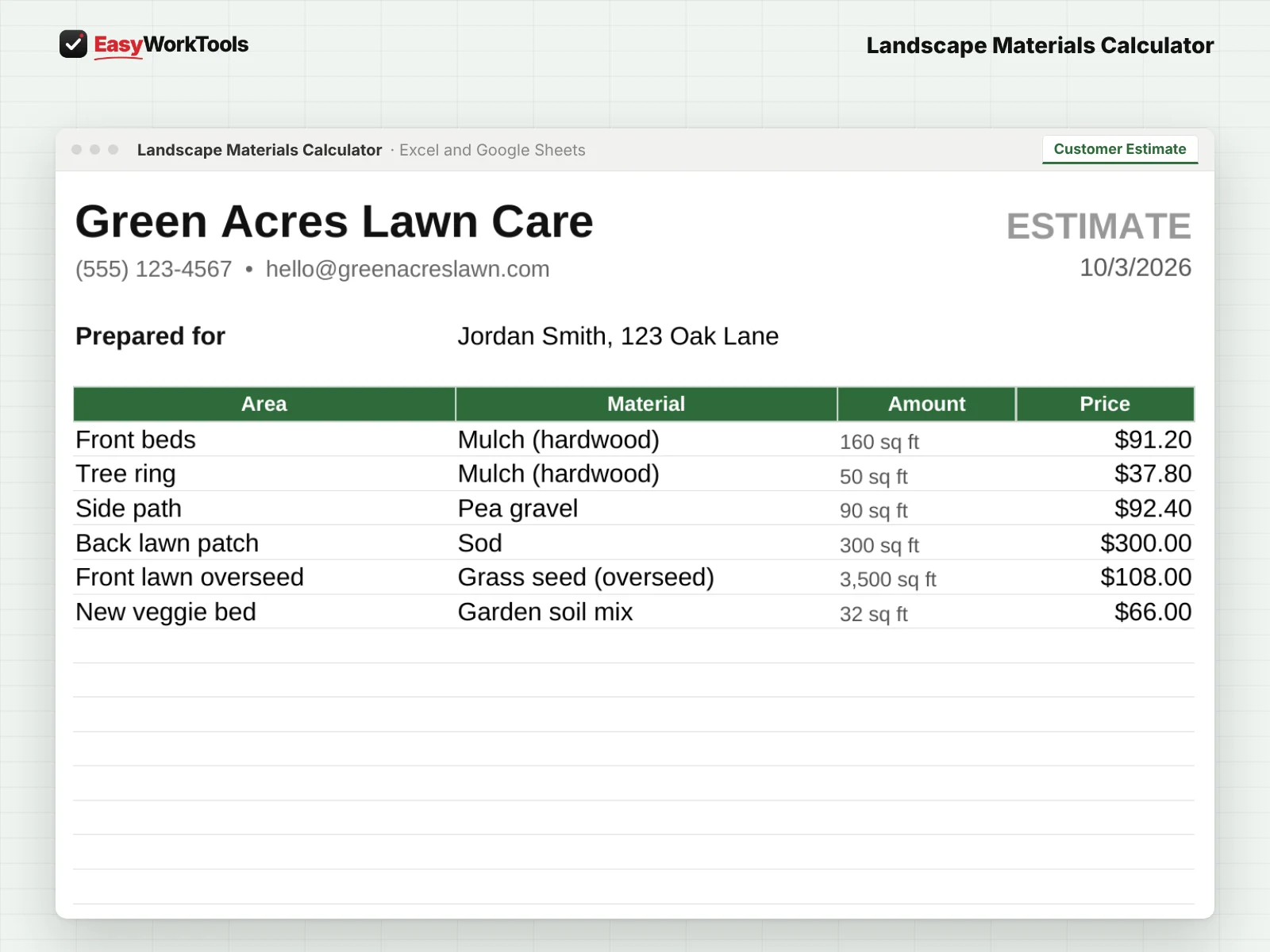
- Open Customer Estimate. It fills in with your business info, each area, and the price.
- Print it or save it as a PDF. Your costs and markup never show on it.
What the messages mean
The tool watches your numbers and tells you in plain words when something needs a look. Here's every message you might see.
What to do: Fill in its bulk and bag prices on My Prices.
What to do: Order bulk with delivery.
What to do: Buy bags, or pick it up yourself if you can haul it.
What to do: Grab bags on your way to the job.
What to do: Look at bulk delivery instead.
What to do: Nothing to fix. It's priced by its bulk unit.
Using Google Sheets or your phone
- To use Google Sheets, upload the file to Google Drive, then right-click it and choose Open with, then Google Sheets.
- Dropdowns, colors, and every calculation work the same in Google Sheets.
- On a phone, the Google Sheets and Excel apps work for quick changes. For setup and printing, a computer is easier.
- Want to start fresh? Type over the yellow example cells. Don't delete rows, since other tabs may be reading them.
Common questions
Does it handle tons for rock and soil?
Yes. It converts yards to tons using the weight per yard on My Prices, which you can change.
Can I add my own materials?
Yes. There are custom material slots on My Prices.
Quick reference from the Start Here tab
Welcome
Never run short on a job or overbuy again. Measure the area, pick the material, and this tells you exactly how much to order, whether bulk or bags is cheaper, and what to charge your customer.
Setup (About 5 Minutes)
Open 'My Prices'. Call your supplier or check their website and type in your local prices. The example prices are only placeholders.
Set your delivery fee and the markup you add to materials.
For Each Job
Open 'Calculator'. Add one line for each area: the front beds, the back path, the new lawn, and so on.
Pick the material and shape, then type the measurements in feet.
Depth fills in a typical amount for you. Type over it if your job needs more or less.
Read across: how much to order, bags vs. bulk, the cheaper choice, and your customer price.
The Job Summary at the bottom adds up the whole job, delivery included, and tells you if skipping delivery would be cheaper.
Open 'Customer Estimate' to print or save a clean PDF for your customer. Your costs never show on it.
Handy Tips
Not sure of the shape? Break it into rectangles. Odd curves are close enough as a rectangle plus a triangle.
Already know the square feet? Pick 'Known sq ft' and type the number in Length.
Waste % covers spills, settling, and uneven ground. 5 to 10% is common. Sod and seed may need a bit more on curvy edges.
Most suppliers sell bulk in half-yard steps, so the order amount rounds up to the next half yard.
Using Google Sheets? Upload this file to Google Drive and open it with Google Sheets. Everything works the same.
Your License
This file is licensed to one business, including everyone who works there. Please don't share, resell or post it online.
© 2026 EasyWorkTools. All rights reserved. easyworktools.com
Every tab
This file has 5 tabs, in this order:
- Start Here
- Calculator
- Customer Estimate
- My Prices
- Depth Guide