Before you start
- Your download is a zip with two files. Double-click it to open it. Start with the one marked with examples to see how everything works, then use the blank one for your business.
- Open the file in Microsoft Excel. Using Google Sheets? Upload it to Google Drive, then open it with Google Sheets.
- Start on the Start Here tab. It has the same steps, right inside the file.
- The sample data is there so you can see how everything works. Type over it with your own when you're ready.
Here's how to set it up once, then keep every quote, job, and payment in front of you so no bid goes cold and customers come back every year.
1Set it up (one time, about 5 minutes)
- Open Settings. Add your business name, how many days to wait before following up on a quote, and how far ahead to show customers due for a repeat wash.
- Edit the dropdown lists if you like: repeat schedules, where customers found you, quote statuses, and payment methods.
2Add your customers
- Open Customers and type over the examples, one row per customer: phone, email, address, type, and how they found you.
- Set each customer's Repeat schedule, like yearly for a house wash. That's how the tracker knows when to remind you to bring them back.
- Add access and spigot notes so the next visit goes smoothly. The gray columns fill in on their own: jobs done, total spent, and last job.
3Track quotes and follow up
- Every time you send a quote, add a line on Quotes: date sent, customer, what was quoted, price, and which package they picked.
- Change the Status to Won or Lost when you hear back. For lost quotes, pick the reason. Over time it shows you why people say no.
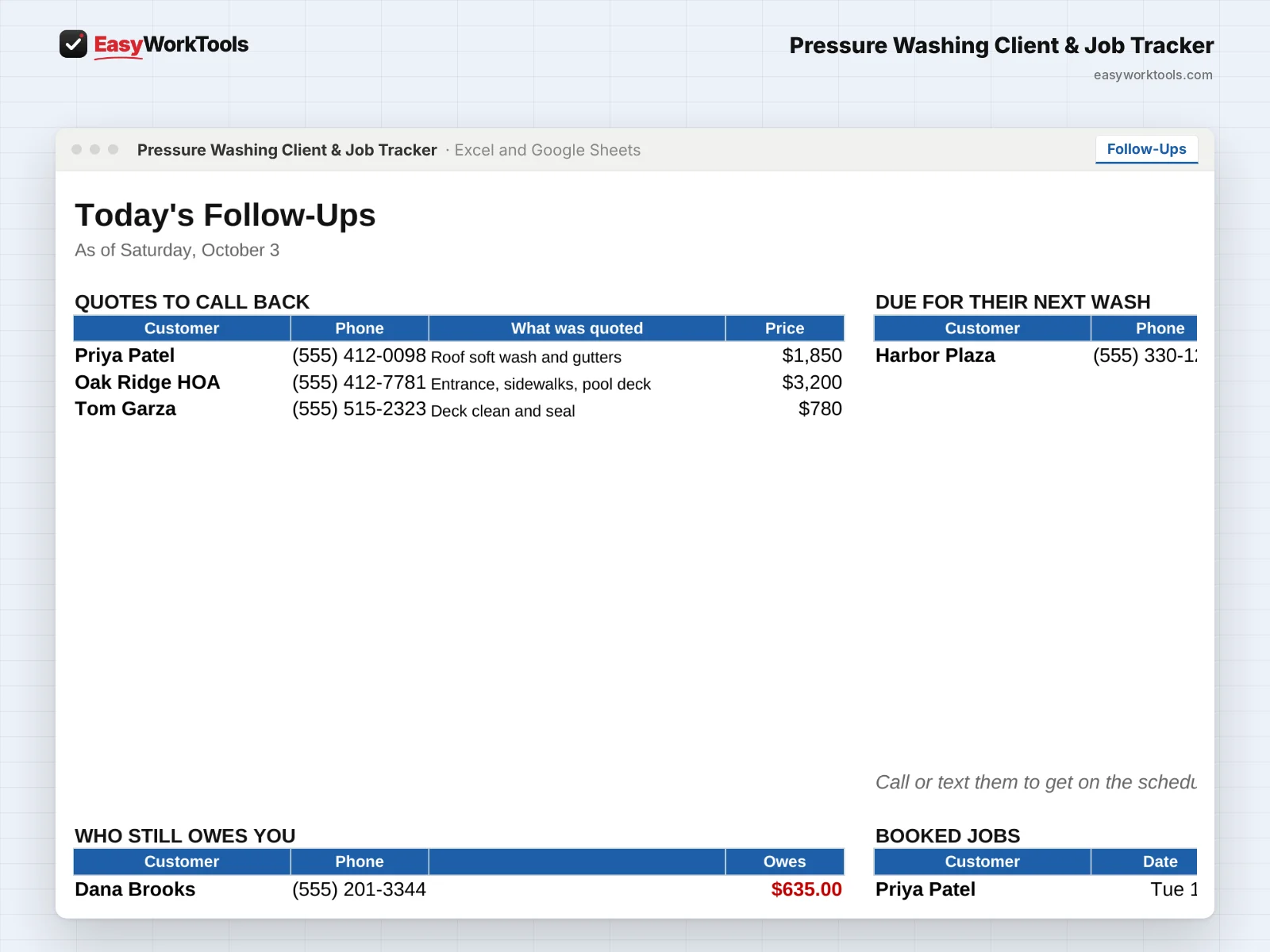
- Every morning, open Follow-Ups. It lists quotes to call back today, customers due for their next wash, who still owes you, and booked jobs.
4Log jobs and get paid
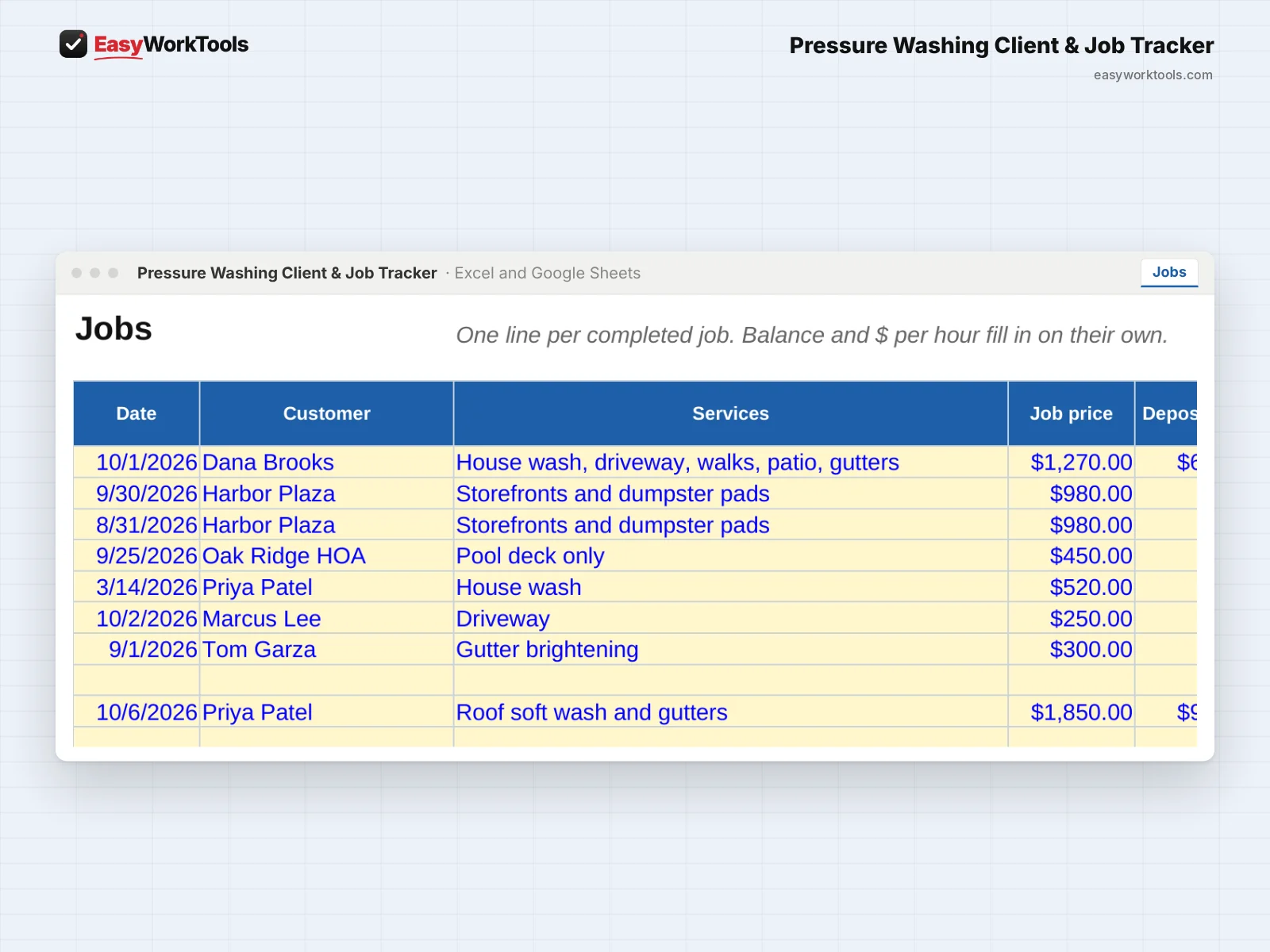
- Booked a job? Add it on Jobs with the date, services, price, and deposit, and set Status to Booked. Change it to Done when you finish.
- Fill in what they paid at completion and how. The balance and your dollars per hour fill in on their own.
- Mark Photos? and Review asked? on every job. Before and after photos are your best marketing, and reviews win the next quote.
5Send an invoice
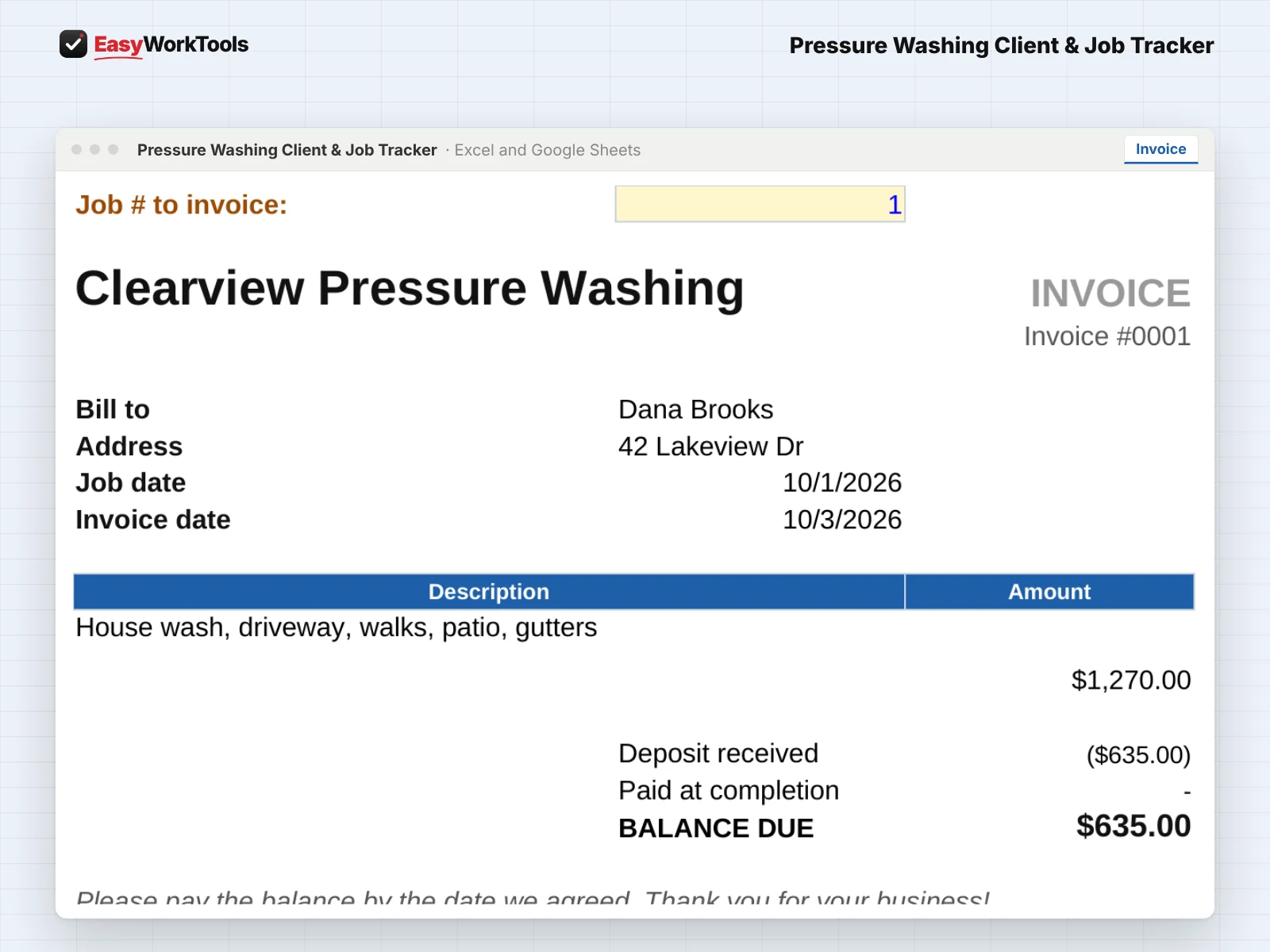
- Open Invoice and type the job number at the top. Everything fills in: the customer, address, job date, services, deposit, and balance due.
- Print it or save it as a PDF to email or text.
6Check how business is going
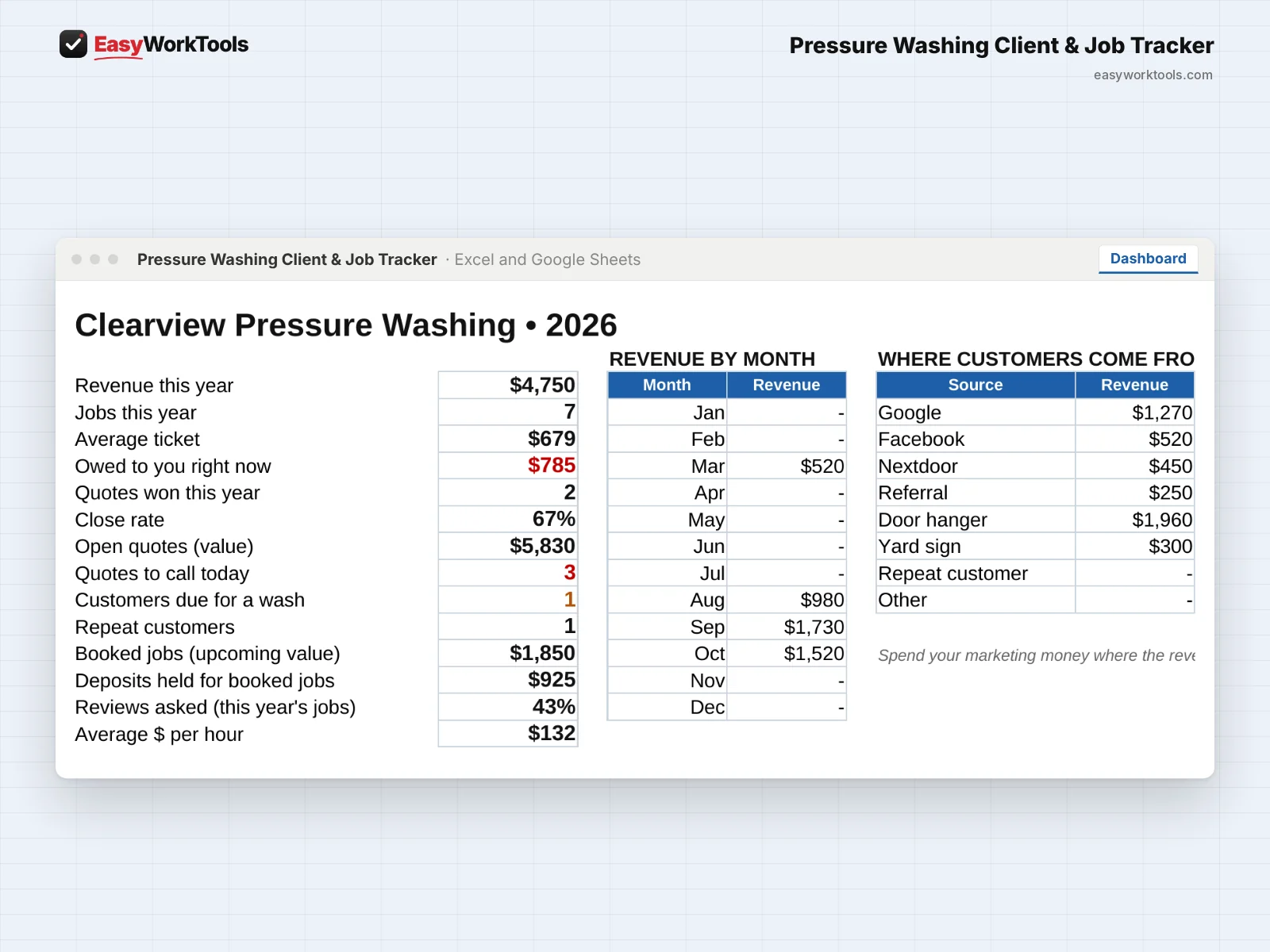
- Open the Dashboard weekly. It shows revenue, jobs, average ticket, what you're owed, your close rate, and repeat customers.
- Where customers come from shows revenue by source, so you know where your marketing money actually works.
What the messages mean
The tool watches your numbers and tells you in plain words when something needs a look. Here's every message you might see.
What to do: Check the job number on the Jobs tab and type it again.
What to do: Check the payment amounts on that job.
What to do: Add the date you sent the quote.
What to do: Change the status to Done, or update the date if it was rescheduled.
What to do: Nothing to do.
What to do: Nothing to fix. Send it as a receipt.
Using Google Sheets or your phone
- To use Google Sheets, upload the file to Google Drive, then right-click it and choose Open with, then Google Sheets.
- Dropdowns, colors, and every calculation work the same in Google Sheets.
- On a phone, the Google Sheets and Excel apps work for quick changes. For setup and printing, a computer is easier.
- Want to start fresh? Type over the yellow example cells. Don't delete rows, since other tabs may be reading them.
Common questions
Should I type customer names or pick them?
Pick them from the dropdown. Names have to match exactly for totals and reminders to work.
Does it work with the Quote Calculator?
Yes. Price the job in the Quote Calculator, then log the quote and the package they picked here.
Quick reference from the Start Here tab
Welcome
Most pressure washing money is in the repeat wash and the quote you followed up on. This tracker remembers both for you. It tells you who's due for their yearly wash, which quotes to call back today, who still owes a balance, and which marketing actually brings in customers.
Setup (About 5 Minutes)
Open 'Settings'. Add your business name, how many days to wait before following up on a quote, and edit any dropdown lists.
Open 'Customers'. Type over the examples with your own. Set each customer's repeat schedule, like yearly for a house wash.
As You Work
Sent a quote? Add a line on 'Quotes'. Change the status to Won or Lost when you hear back.
Booked a job? Add it on 'Jobs' with the date and deposit, and set Status to Booked. Change it to Done when you finish.
Need an invoice? Open 'Invoice', type the job number, and print it or save it as a PDF.
Every morning, open 'Follow-Ups'. It lists quotes to call back and customers due for their next wash.
Check 'Dashboard' weekly for revenue, close rate, and where your customers come from.
Handy Tips
Type each customer's name the same way everywhere. The dropdowns help with that.
Ask every happy customer for a review right after the job, and mark it on the Jobs tab. Reviews win the next quote.
Take before and after photos on every job and mark it. They're your best marketing.
Using Google Sheets? Upload this file to Google Drive and open it with Google Sheets. Everything works the same.
Your License
This file is licensed to one business, including everyone who works there. Please don't share, resell or post it online.
© 2026 EasyWorkTools. All rights reserved. easyworktools.com
Every tab
This file has 8 tabs, in this order:
- Start Here
- Dashboard
- Follow-Ups
- Invoice
- Customers
- Quotes
- Jobs
- Settings