Before you start
- Your download is a zip with two files. Double-click it to open it. Start with the one marked with examples to see how everything works, then use the blank one for your business.
- Open the file in Microsoft Excel. Using Google Sheets? Upload it to Google Drive, then open it with Google Sheets.
- Start on the Start Here tab. It has the same steps, right inside the file.
- The sample data is there so you can see how everything works. Type over it with your own when you're ready.
Here's how to set up once, then log income, hours and miles in a few minutes a day.
1Set up (one time, about 10 minutes)
- Open Settings. Enter the year, tax set-aside, card and app fee rates, and your detailers with pay per hour.
- Look over the expense categories. Rename or add your own. Check tax lines with your tax pro.
2Log income and expenses

- Income: each payment with lead detailer, what it was for, amount, tip and how they paid.
- Expenses: what you spend, with a category and whether you have a receipt.
3Log hours and pay detailers
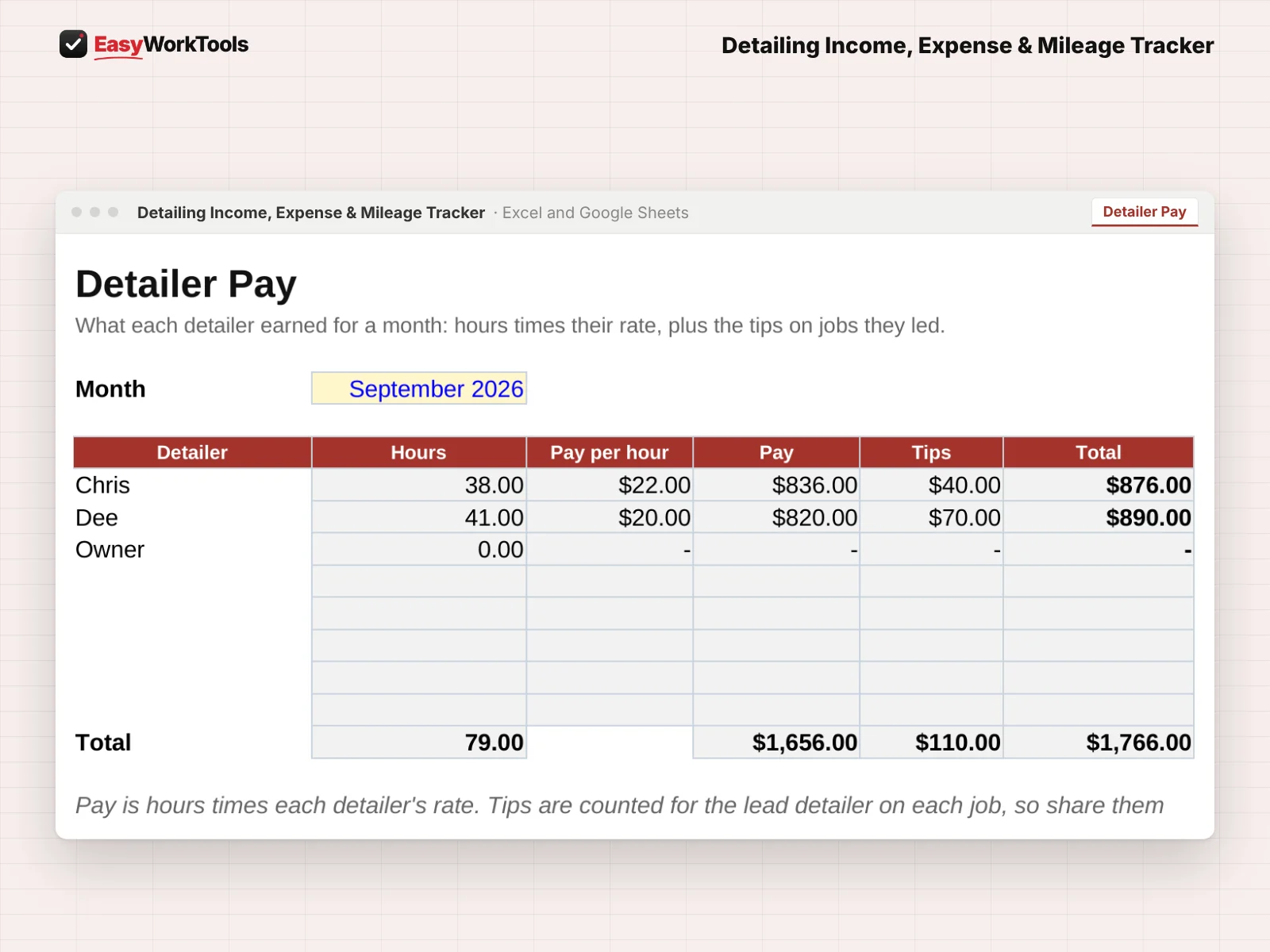
- Hours: one row per detailer per day or job. Detailer Pay adds it up for any month.
4Log miles
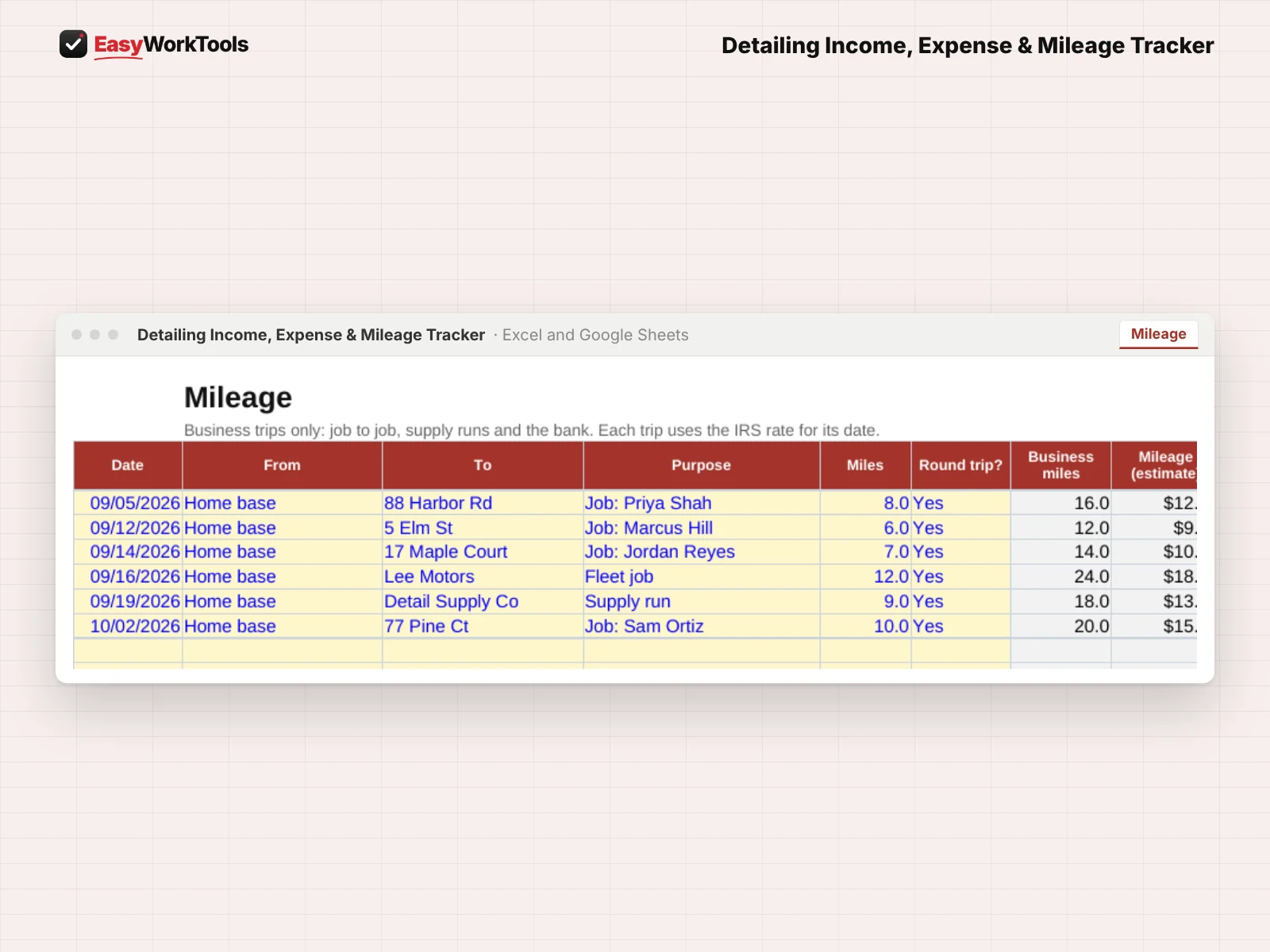
- Mileage: trips between jobs and supply runs, at the IRS rate for each date.
What the messages mean
The tool watches your numbers and tells you in plain words when something needs a look. Here's every message you might see.
What to do: Pick a payment type.
What to do: Pick it from the list.
What to do: Add the minus sign.
What to do: Add it on Settings.
Using Google Sheets or your phone
- To use Google Sheets, upload the file to Google Drive, then right-click it and choose Open with, then Google Sheets.
- Dropdowns, colors, and every calculation work the same in Google Sheets.
- On a phone, the Google Sheets and Excel apps work for quick changes. For setup and printing, a computer is easier.
- Want to start fresh? Type over the yellow example cells. Don't delete rows, since other tabs may be reading them.
Ready when you are
Like what you see? Get the detailing income tracker for $9, with every future update free. Need more than one tool? Save with the toolkit.
Common questions
Is this tax advice?
No. It's a record-keeping tool. Check with your tax pro.
Quick reference from the Start Here tab
Welcome
Know what the detailing business is really making. Track every payment, tip and expense, log the miles between jobs, pay each detailer for the hours they worked, and walk into tax time with clean totals.
Setup (About 10 Minutes, One Time)
Open 'Settings'. Enter the year, your card and app fees, your detailers and their pay per hour, and how much to set aside for taxes.
Check the expense categories. Rename or add your own. The tax lines are the usual ones, not advice. Confirm them with your tax pro.
Every Day Or Week
'Income': add each payment. Keep tips in their own column. Card and app fees fill in on their own.
'Expenses': add what you spend and pick a category. Mark whether you kept the receipt.
'Hours': log each detailer's hours. 'Detailer Pay' turns them into pay for any month.
'Mileage': log the drive between jobs and supply runs. Each trip uses the IRS rate for its date.
How You Work
Solo detailer: log your income, expenses and miles. Leave Hours blank, or log your own to see what each hour really earned.
Team with employees or contractors: log every detailer's hours. 'Detailer Pay' shows what each one is owed, with the tips they collected.
Products you sell to customers, like coating maintenance kits, go in as Products sold, so they don't inflate your detailing income.
What It Tells You
'Dashboard': income, tips, fees, expenses and profit by month, your average job, and what to set aside for taxes.
'Tax Summary': yearly totals by category with the usual tax line, plus your mileage at the IRS rate for each trip's date.
Handy Tips
Refund? Add it on 'Income' as What = Refund with a minus sign, like -45.
Each trip's mileage uses the IRS rate in effect on its date. Add new rates on 'Settings' when they're announced.
Using Google Sheets? Upload this file to Google Drive and open it with Google Sheets. The math works the same there. Locks don't carry over to Google Sheets, so type only in the yellow cells, and print with File > Print.
Important
This tracker organizes your numbers. It isn't tax or legal advice. Tax lines, deductions and mileage rules depend on your situation, so check with a tax professional.
Your License
This file is licensed to one business, including everyone who works there. Please don't share, resell or post it online.
© 2026 EasyWorkTools. All rights reserved. easyworktools.com
Every tab
This file has 9 tabs, in this order:
- Start Here
- Dashboard
- Detailer Pay
- Tax Summary
- Income
- Expenses
- Hours
- Mileage
- Settings