Before you start
- Your download is a zip with two files. Double-click it to open it. Start with the one marked with examples to see how everything works, then use the blank one for your business.
- Open the file in Microsoft Excel. Using Google Sheets? Upload it to Google Drive, then open it with Google Sheets.
- Start on the Start Here tab. It has the same steps, right inside the file.
- The sample data is there so you can see how everything works. Type over it with your own when you're ready.
Here's how to set up once, then keep every home, visit and payment straight in a minute or two a day.
1Set up (one time, about 10 minutes)
- Open Settings. Add your cleaners, services, schedules and your every-visit checklist. Set your lockout fee.
2Add your homes
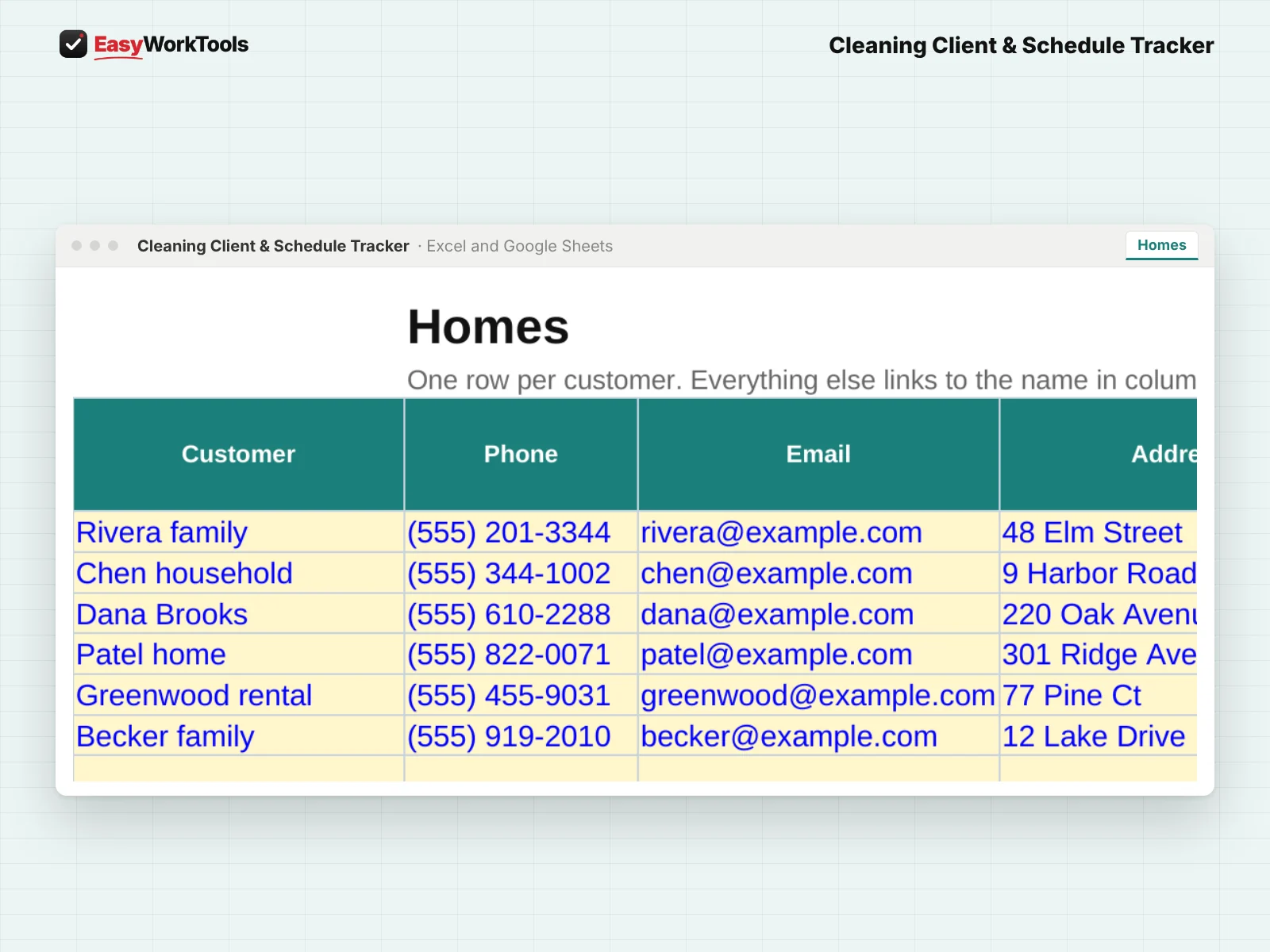
- Open Homes. One row per customer: contact info, schedule, visit day, price per visit and the hours you quoted.
- Add entry notes, alarm code, pets and preferences so anyone on your team can walk in prepared.
3Log visits and payments
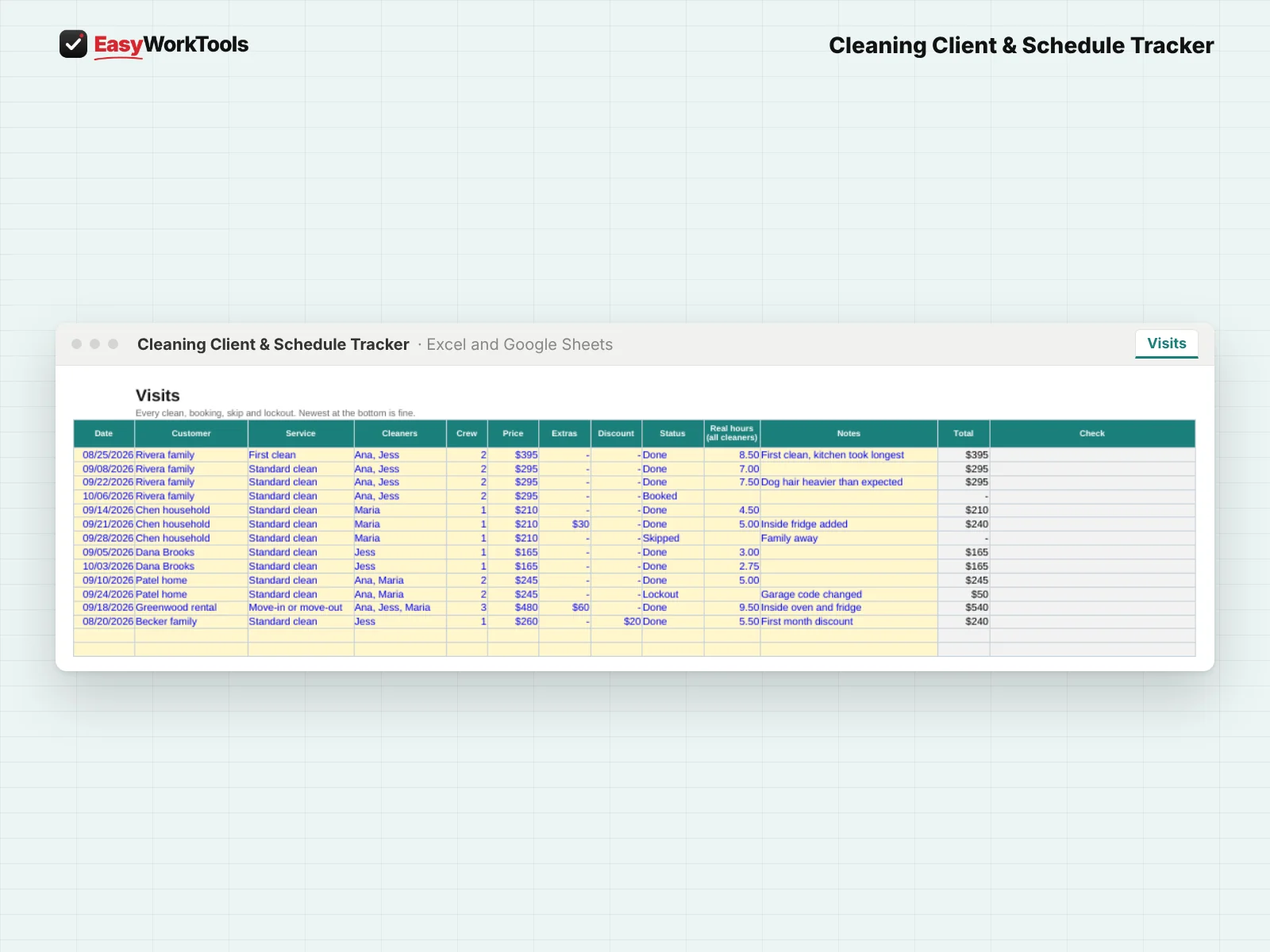
- Open Visits. Add each clean with the real hours, all cleaners added together. Set Status to Done, Skipped, Cancelled or Lockout.
- Got paid? Add it on Payments. Deposits and partial payments are fine. Balances update on their own.
4Start each day on the Dashboard
- The Dashboard shows who's due, who owes you and which homes are running over their quoted time.
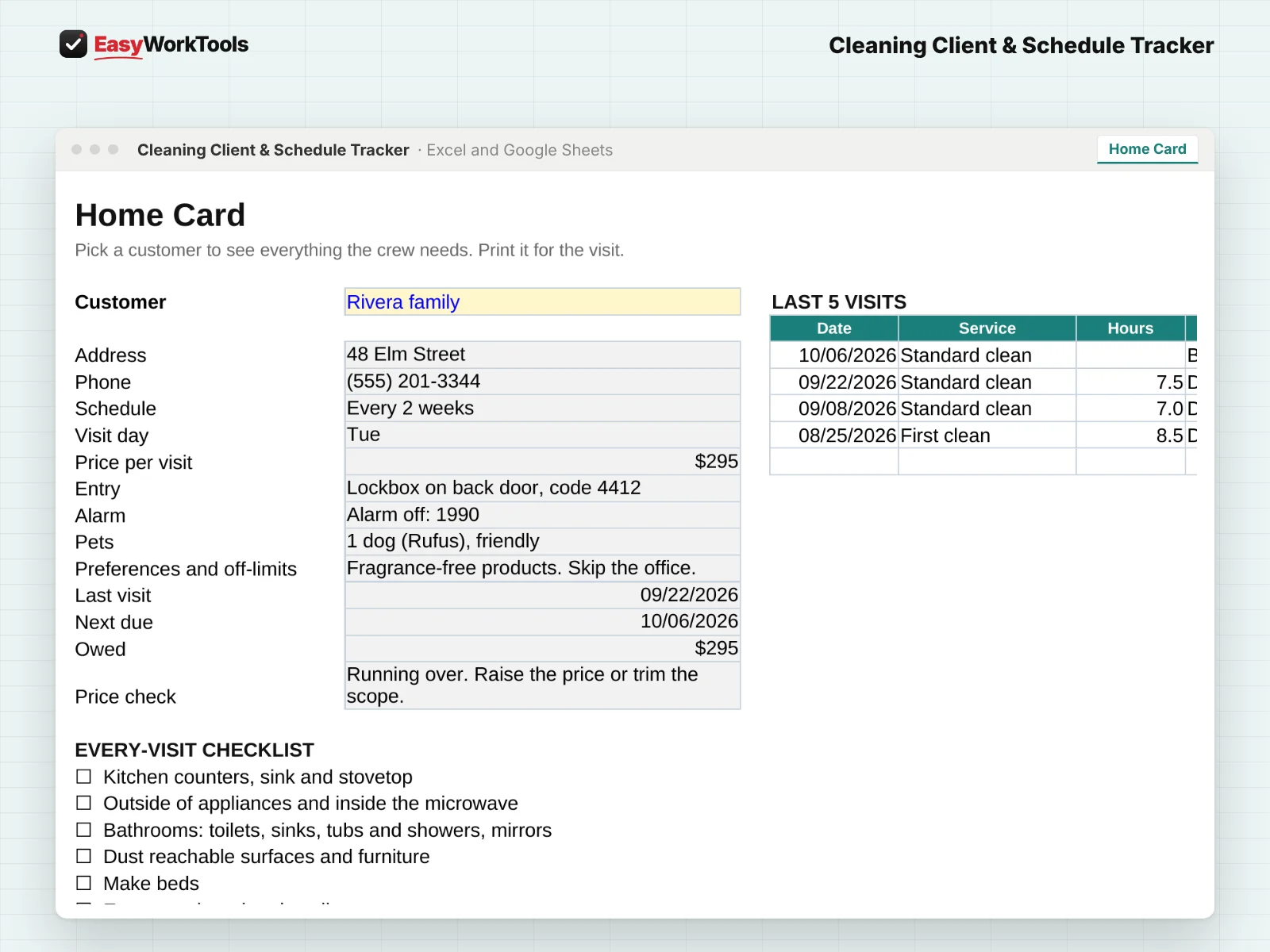
- Open Home Card and pick a customer. Print it for the crew.
What the messages mean
The tool watches your numbers and tells you in plain words when something needs a look. Here's every message you might see.
What to do: Pick the customer from the list.
What to do: Add the hours, all cleaners together.
What to do: Update the status.
What to do: Check the discount.
What to do: Talk with the customer about a new price.
Using Google Sheets or your phone
- To use Google Sheets, upload the file to Google Drive, then right-click it and choose Open with, then Google Sheets.
- Dropdowns, colors, and every calculation work the same in Google Sheets.
- On a phone, the Google Sheets and Excel apps work for quick changes. For setup and printing, a computer is easier.
- Want to start fresh? Type over the yellow example cells. Don't delete rows, since other tabs may be reading them.
Ready when you are
That's the whole thing, nothing held back. See pricing and screenshots for this tool, or compare every house cleaning tool side by side.
Common questions
What happens when a client skips?
Mark the visit Skipped. The next due date moves forward and nothing is billed.
Do first cleans count against the average?
No. The real-hours average leaves out first cleans, since they always take longer.
Quick reference from the Start Here tab
Welcome
Every home, every visit and every payment in one place. See who's due this week, who still owes you, and which homes keep taking longer than you priced, without digging through texts, a paper calendar and payment apps.
Setup (About 10 Minutes, One Time)
Open 'Settings'. Add your cleaners, your services, your schedules and the checklist you follow every visit.
Open 'Homes'. Add each customer once: contact info, schedule, visit day, price per visit and the hours you quoted. Add entry notes, alarm codes, pets and preferences so anyone on your team can walk in prepared.
Every Day (About 1 Minute Per Home)
Open 'Visits'. Add a row for every clean: date, customer, service, price and the real hours it took, all cleaners added together. Set Status to Done.
Skipped, cancelled or locked out? Pick that status instead. A lockout adds your lockout fee.
Got paid? Add it on 'Payments'. Deposits and partial payments are fine. Balances update on their own.
Check the 'Dashboard' each morning: who's due, who owes you, and which homes are running over the time you quoted.
Home Card
Open 'Home Card' and pick a customer. You'll see entry notes, alarm, pets, preferences, the last 5 visits and the checklist. Print it for the crew.
Handy Tips
Type each customer's name the same way every time. Visits and payments match on the exact name, and the drop-downs help.
Real hours are your best pricing tool. When a home keeps running over its quote, the Dashboard tells you, and shows the price that matches the real time.
Keep alarm codes and entry notes in this file only if your computer and account are secure. You can leave them blank and keep them somewhere private instead.
Using Google Sheets? Upload this file to Google Drive and open it with Google Sheets. Everything works the same.
Your License
This file is licensed to one business, including everyone who works there. Please don't share, resell or post it online.
© 2026 EasyWorkTools. All rights reserved. easyworktools.com
Every tab
This file has 7 tabs, in this order:
- Start Here
- Dashboard
- Home Card
- Homes
- Visits
- Payments
- Settings