Before you start
- Your download is a zip with two files. Double-click it to open it. Start with the one marked with examples to see how everything works, then use the blank one for your business.
- Open the file in Microsoft Excel. Using Google Sheets? Upload it to Google Drive, then open it with Google Sheets.
- Start on the Start Here tab. It has the same steps, right inside the file.
- The sample data is there so you can see how everything works. Type over it with your own when you're ready.
Here's how to set up once, then keep every customer, vehicle and job straight in a minute a job.
1Set up (one time, about 10 minutes)
- Open Settings. Add your detailers and packages, and how many days ahead you want reminders.
2Add customers, then vehicles
- Open Customers. One row per customer, with contact info and water and power notes for mobile jobs.
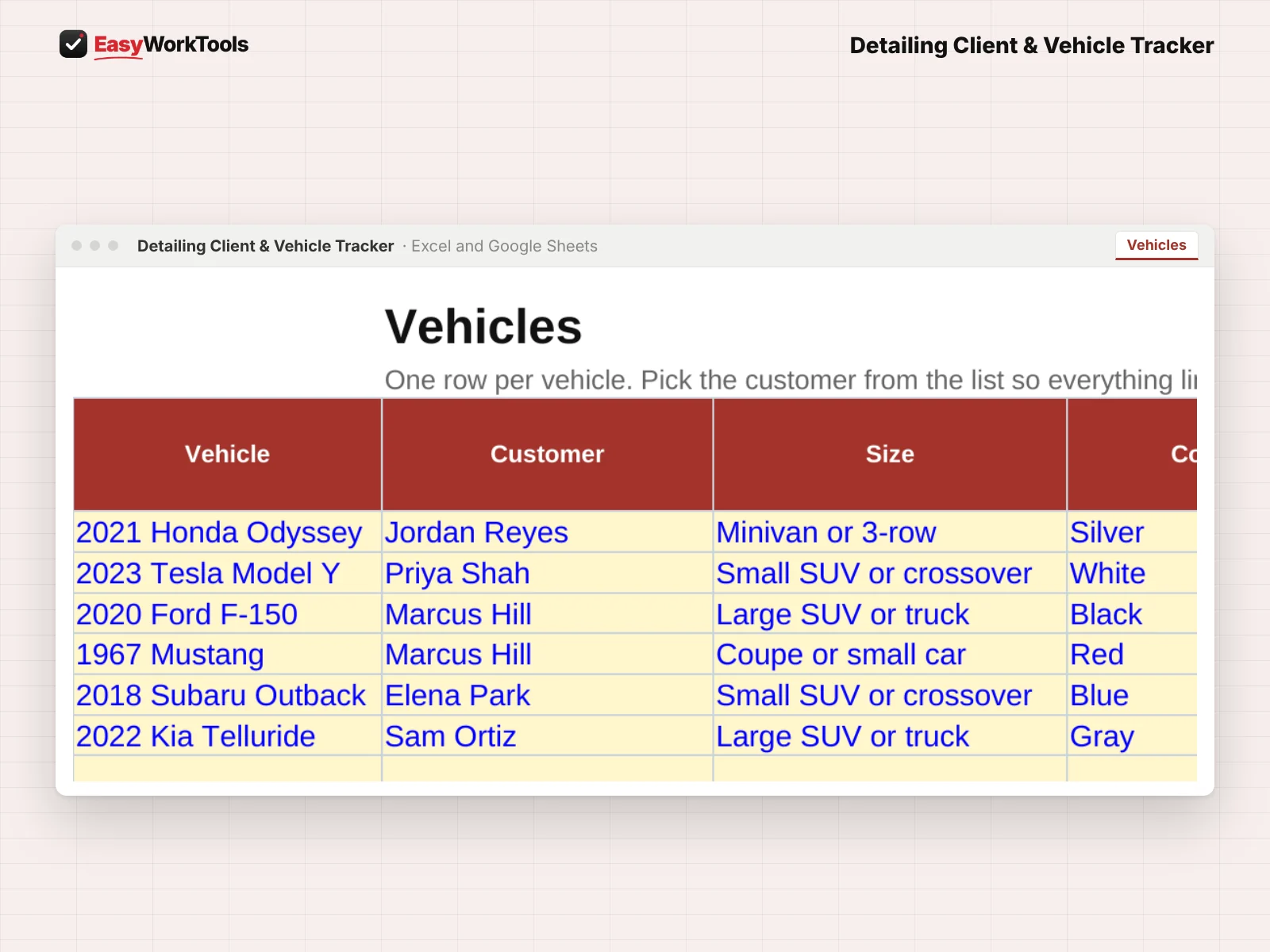
- Open Vehicles. One row per vehicle. Pick the customer so everything links up. Add paint protection, maintenance interval and coating dates.
3Log every job
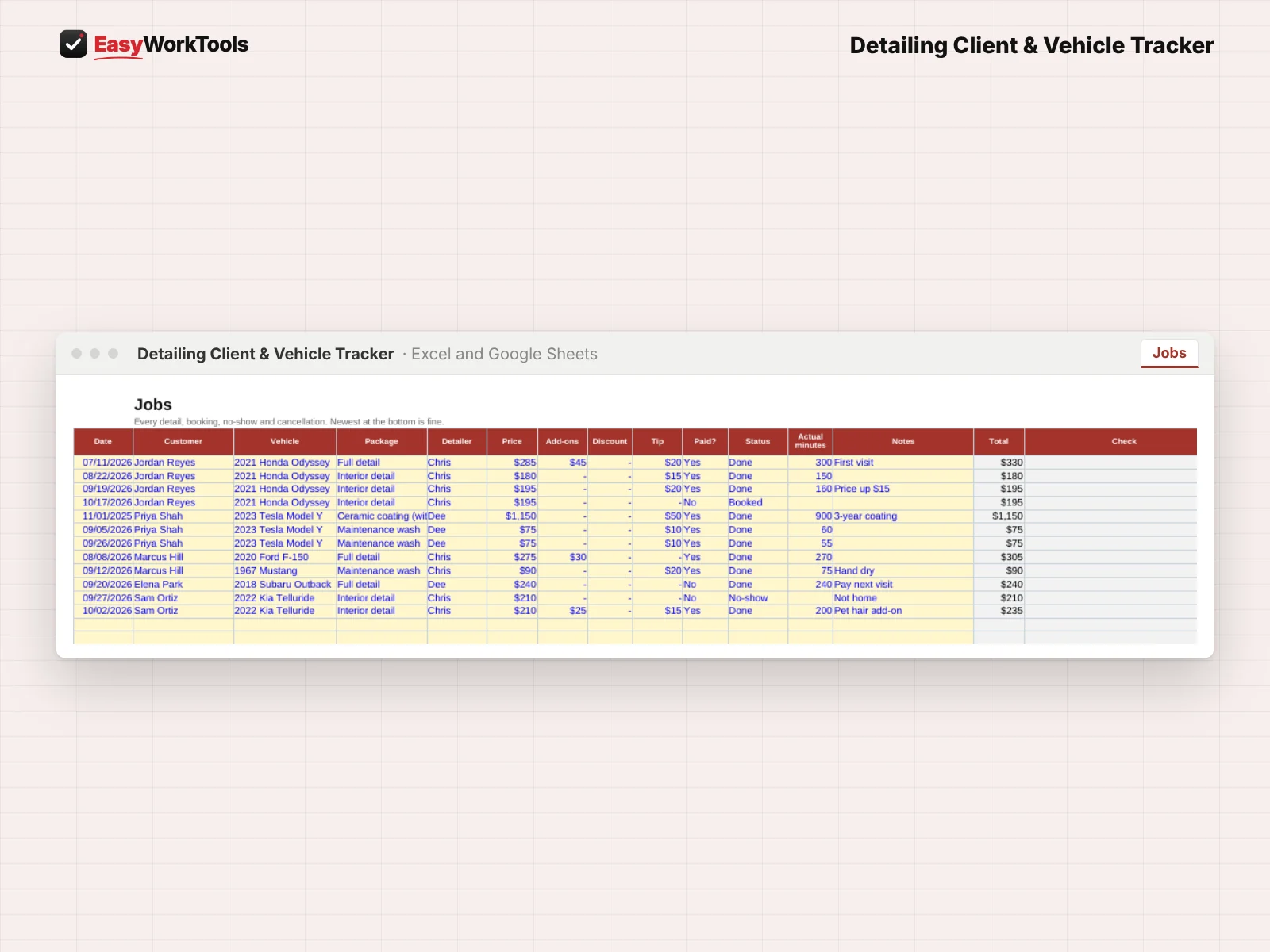
- Open Jobs. Add each detail with price, add-ons, tip and paid or not. Set Status to Done, Booked, No-show or Cancelled.
4Check the Dashboard

- The Dashboard shows vehicles due, coatings ending, jobs not paid and frequent no-shows.
- Open Vehicle Card and pick a vehicle for everything about it.
What the messages mean
The tool watches your numbers and tells you in plain words when something needs a look. Here's every message you might see.
What to do: Pick it from the list.
What to do: Pick it from the list, or add it.
What to do: Type just the number.
What to do: Check the discount.
Using Google Sheets or your phone
- To use Google Sheets, upload the file to Google Drive, then right-click it and choose Open with, then Google Sheets.
- Dropdowns, colors, and every calculation work the same in Google Sheets.
- On a phone, the Google Sheets and Excel apps work for quick changes. For setup and printing, a computer is easier.
- Want to start fresh? Type over the yellow example cells. Don't delete rows, since other tabs may be reading them.
Ready when you are
That's the whole thing, nothing held back. See pricing and screenshots for this tool, or compare every auto detailing tool side by side.
Common questions
Can one customer have several vehicles?
Yes. Add each vehicle on its own row and pick the same customer.
Quick reference from the Start Here tab
Welcome
Every customer, every vehicle and every detail in one place. See whose maintenance wash is due, which coatings need a checkup, what you charged last time and who still owes you, without digging through texts and booking apps.
Setup (About 10 Minutes, One Time)
Open 'Settings'. Add your detailers, your packages, and how many days ahead you want reminders.
Open 'Customers'. Add each customer once: name, phone, email, address and how they like to be contacted.
Open 'Vehicles'. Add each vehicle and pick its customer from the list. One customer can have as many vehicles as they like.
Every Job (About 1 Minute Per Vehicle)
Open 'Jobs'. Add a row for every detail: date, customer, vehicle, package, price, add-ons and tip. Set Status to Done.
Booked the next one? Add it with Status Booked. No-shows and cancellations get their own status.
Check the 'Dashboard' each morning: who's due for a maintenance wash, which coatings need a checkup, and how the month is going.
Vehicle Card
Open 'Vehicle Card' and pick a vehicle. You'll see the customer, notes, paint protection, coating dates and the last 5 jobs.
Handy Tips
Type each customer's name the same way every time. Vehicles and jobs match on the exact name.
The maintenance interval on each vehicle drives the reminders. Coated cars usually need a maintenance wash every 2 to 4 weeks.
Record coating install dates and warranty years. The Dashboard warns you before a warranty runs out, which is a great time to sell a top-up.
Using Google Sheets? Upload this file to Google Drive and open it with Google Sheets. The math works the same there. Locks don't carry over to Google Sheets, so type only in the yellow cells, and print with File > Print.
Your License
This file is licensed to one business, including everyone who works there. Please don't share, resell or post it online.
© 2026 EasyWorkTools. All rights reserved. easyworktools.com
Every tab
This file has 7 tabs, in this order:
- Start Here
- Dashboard
- Vehicle Card
- Customers
- Vehicles
- Jobs
- Settings