Before you start
- Your download is a zip with two files. Double-click it to open it. Start with the one marked with examples to see how everything works, then use the blank one for your business.
- Open the file in Microsoft Excel. Using Google Sheets? Upload it to Google Drive, then open it with Google Sheets.
- Start on the Start Here tab. It has the same steps, right inside the file.
- The sample data is there so you can see how everything works. Type over it with your own when you're ready.
Here's how to set up your season once, then keep every client, visit, and payment straight in a few minutes a week.
1Set up your season (one time, about 5 minutes)
- Open Settings. Enter your season start and end dates, how many visits each schedule gets, and your price raise for next season.
- The lists on Settings, like statuses, billing types, and payment methods, power the dropdowns everywhere. You can edit them.
2Add your clients
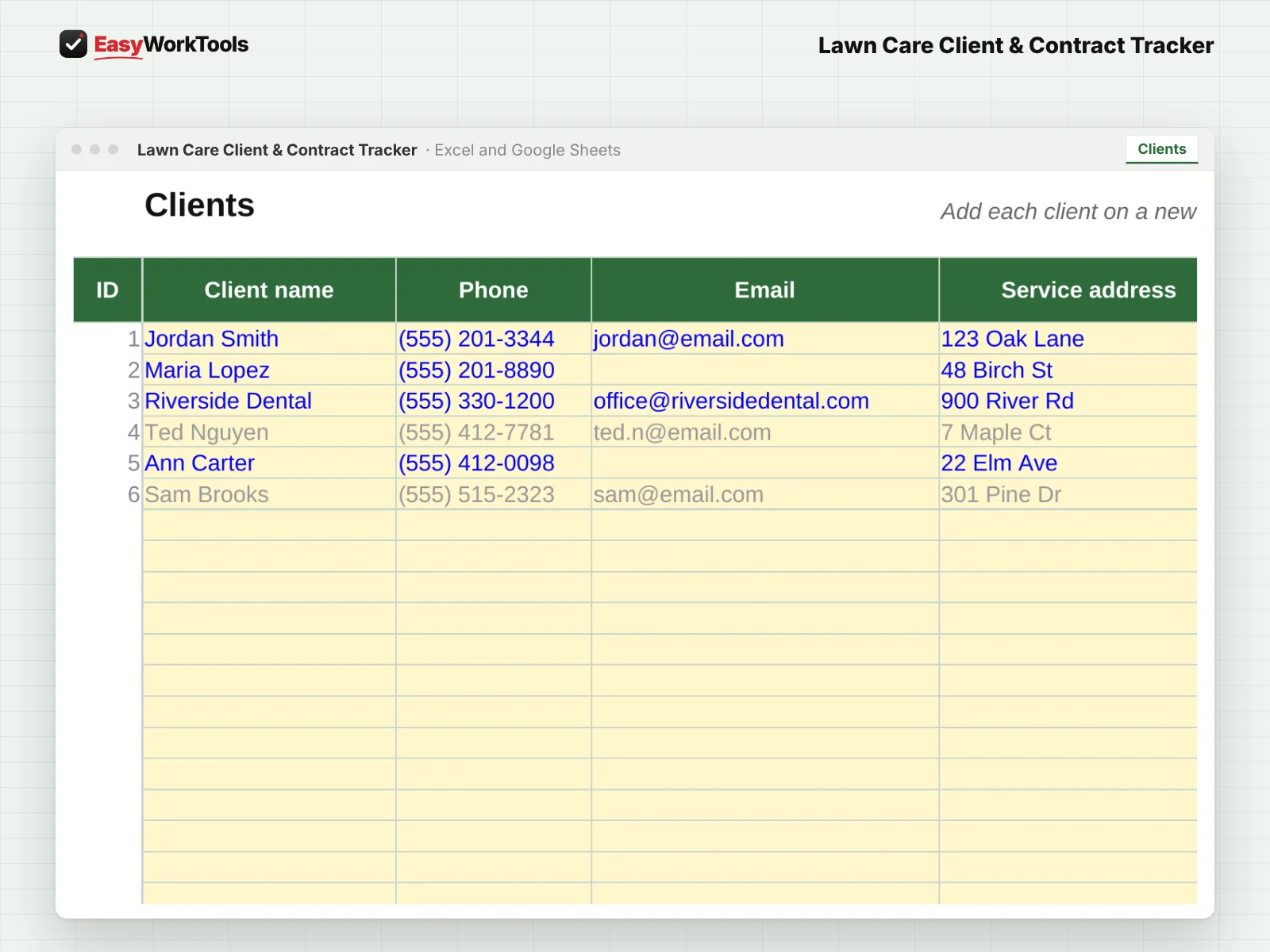
- Open Clients and type over the examples. Add each new client on the next empty row.
- Fill in their phone, address, area, service day, schedule, price per visit, billing type, and start date. Add gate codes, pets, and notes so anyone on your crew knows the yard.
- Set the Status: put new inquiries in as Lead, and switch clients to Paused or Cancelled instead of deleting them. You keep their history and can win them back next spring.
- Use the Area column for neighborhoods. Same area, same day means less driving.
- The gray columns figure themselves out: visits this season, season value, monthly payment, paid to date, what they owe now, and next season's price.
3Log payments, visits, and extra jobs
- Every time someone pays you, add one line on Payments: date, client, amount, and method. Pick the client from the list so names always match.
- Billing a client per visit? Add a line on Visits after each stop so their balance stays right.
- Did a cleanup, aeration, mulch, or other extra job? Add it on Extras and it's added to what they owe.
4Plan your week
- Every Monday, open This Week and print your route sheet. It works out which weekly, biweekly, and monthly clients are due each day.
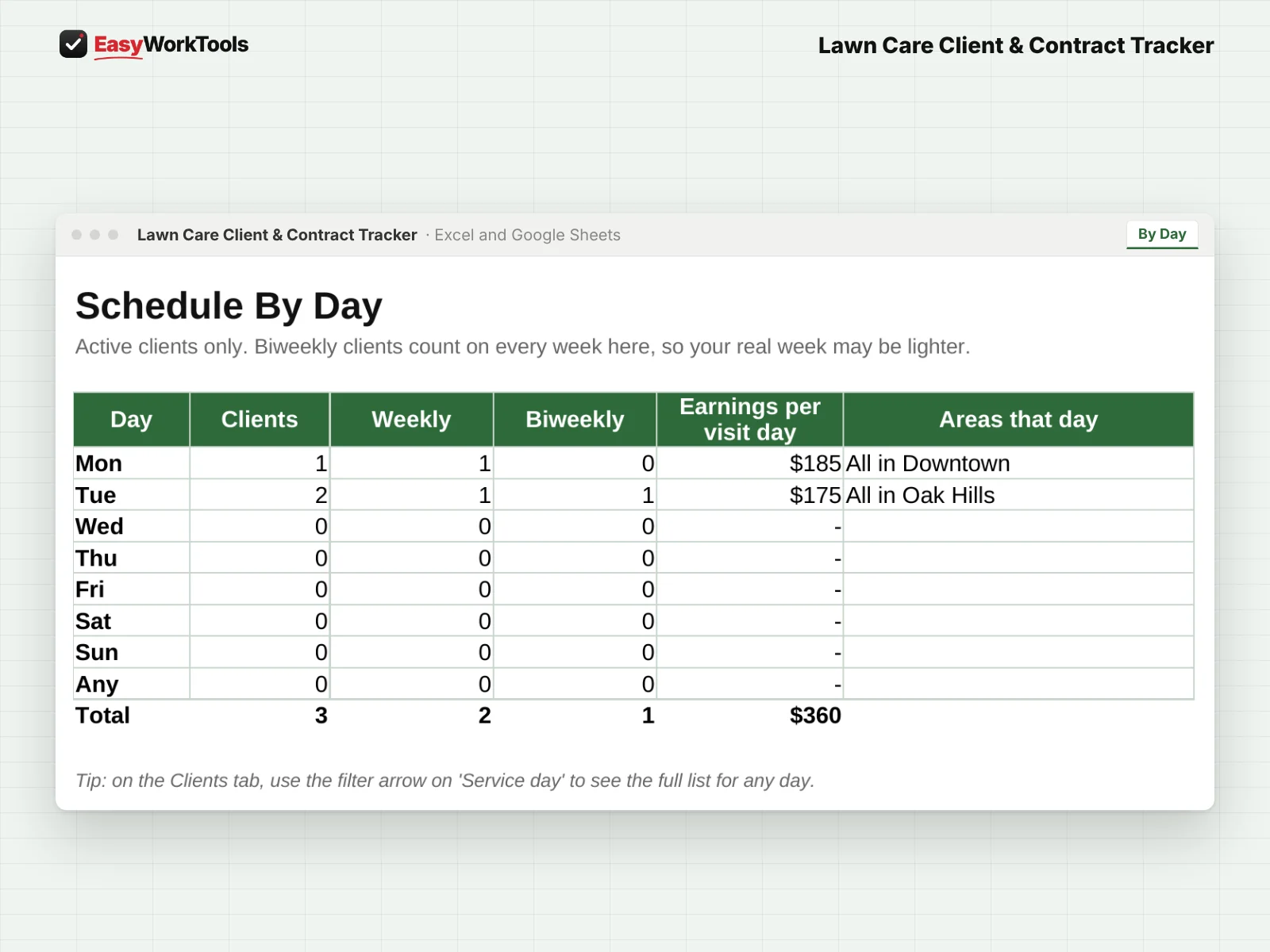
- Open By Day to see how many clients you have on each day and what each day earns. It's the easiest way to spot a light day to fill.
5Send a statement and follow up
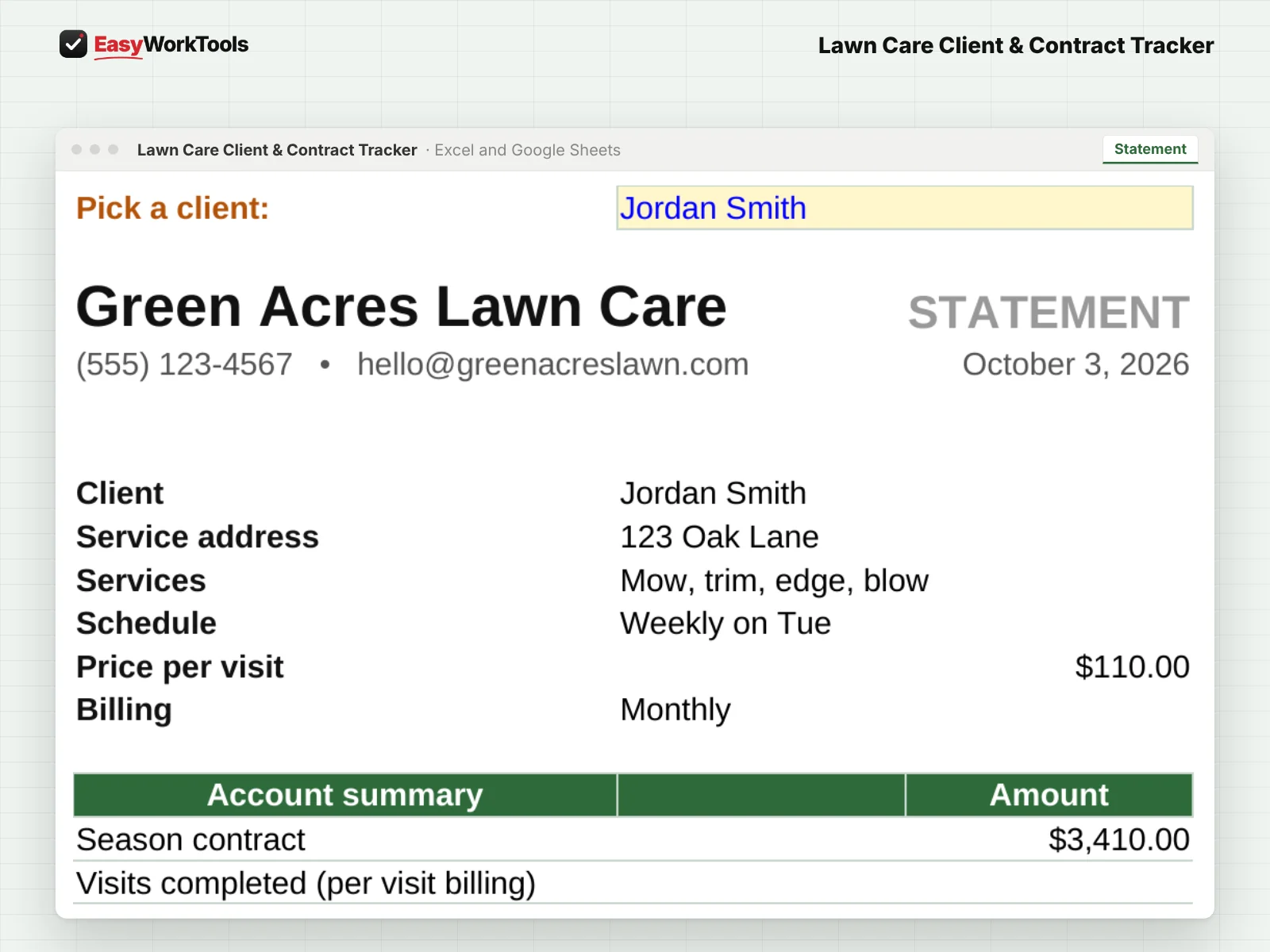
- Open Statement, pick the client's name at the top, and print it or save it as a PDF.
- Check the Dashboard weekly. It shows active clients, season value, what's been paid, and who owes you. A red balance means someone owes you, so follow up kindly and early.
What the messages mean
The tool watches your numbers and tells you in plain words when something needs a look. Here's every message you might see.
What to do: Find the red balances on Clients and send a friendly reminder or a statement.
What to do: Nothing to do.
What to do: Pick per visit, monthly, or prepaid in their Billing column.
What to do: Leave it for the current week, or type a Monday date to plan ahead.
What to do: Pick the name from the dropdown on Payments instead of typing it.
Using Google Sheets or your phone
- To use Google Sheets, upload the file to Google Drive, then right-click it and choose Open with, then Google Sheets.
- Dropdowns, colors, and every calculation work the same in Google Sheets.
- On a phone, the Google Sheets and Excel apps work for quick changes. For setup and printing, a computer is easier.
- Want to start fresh? Type over the yellow example cells. Don't delete rows, since other tabs may be reading them.
Common questions
A client started in June. Will I bill them for April and May?
No. Add their start date and the tracker only counts the months and visits they actually get.
What if I run out of rows?
There's room for 150 clients and 600 payments. Need more? Copy the last row down.
Quick reference from the Start Here tab
Welcome
Every client, every schedule, every payment, in one place. Know who owes you, what your season is worth, and which days are full, without digging through texts and notebooks.
Setup (About 5 Minutes)
Open 'Settings'. Enter your season dates, how many visits each schedule gets, and your price raise for next year.
Open 'Clients'. Type over the example clients with your own. Add a new client on the next empty row.
Every time someone pays you, add one line on the 'Payments' tab. Pick the client from the list.
Did a cleanup, aeration, or other extra job? Add it on the 'Extras' tab so it gets added to what they owe.
Need to send a client a summary? Open 'Statement', pick their name, and print or save it as a PDF.
Every Monday, open 'This Week' and print your route sheet. It figures out who's due on which day.
Every Week
Glance at 'Dashboard' to see your season total, what's been paid, and who still owes you.
Check 'By Day' to see who's on each mowing day and how much each day earns.
Red balance means someone owes you. Follow up kindly and early.
Handy Tips
Change a client to 'Paused' or 'Cancelled' instead of deleting them. You keep their history and can win them back next spring.
Put new inquiries in as 'Lead'. They show up on the Dashboard so nobody slips through the cracks.
Use the Area column for neighborhoods. Clients in the same area on the same day means less driving.
Room for 150 clients and 600 payments. Need more? Copy the last row down.
Using Google Sheets? Upload this file to Google Drive and open it with Google Sheets. Everything works the same.
Your License
This file is licensed to one business, including everyone who works there. Please don't share, resell or post it online.
© 2026 EasyWorkTools. All rights reserved. easyworktools.com
Every tab
This file has 10 tabs, in this order:
- Start Here
- Dashboard
- This Week
- Statement
- By Day
- Settings
- Clients
- Visits
- Extras
- Payments