Before you start
- Your download is a zip with two files. Double-click it to open it. Start with the one marked with examples to see how everything works, then use the blank one for your business.
- Open the file in Microsoft Excel. Using Google Sheets? Upload it to Google Drive, then open it with Google Sheets.
- Start on the Start Here tab. It has the same steps, right inside the file.
- The sample data is there so you can see how everything works. Type over it with your own when you're ready.
Here's how to go from a new file to a priced, printable lawn quote. Setup takes about 10 minutes, once. After that, a typical yard takes about 2 minutes to quote.
1Set up your rates (one time, about 10 minutes)
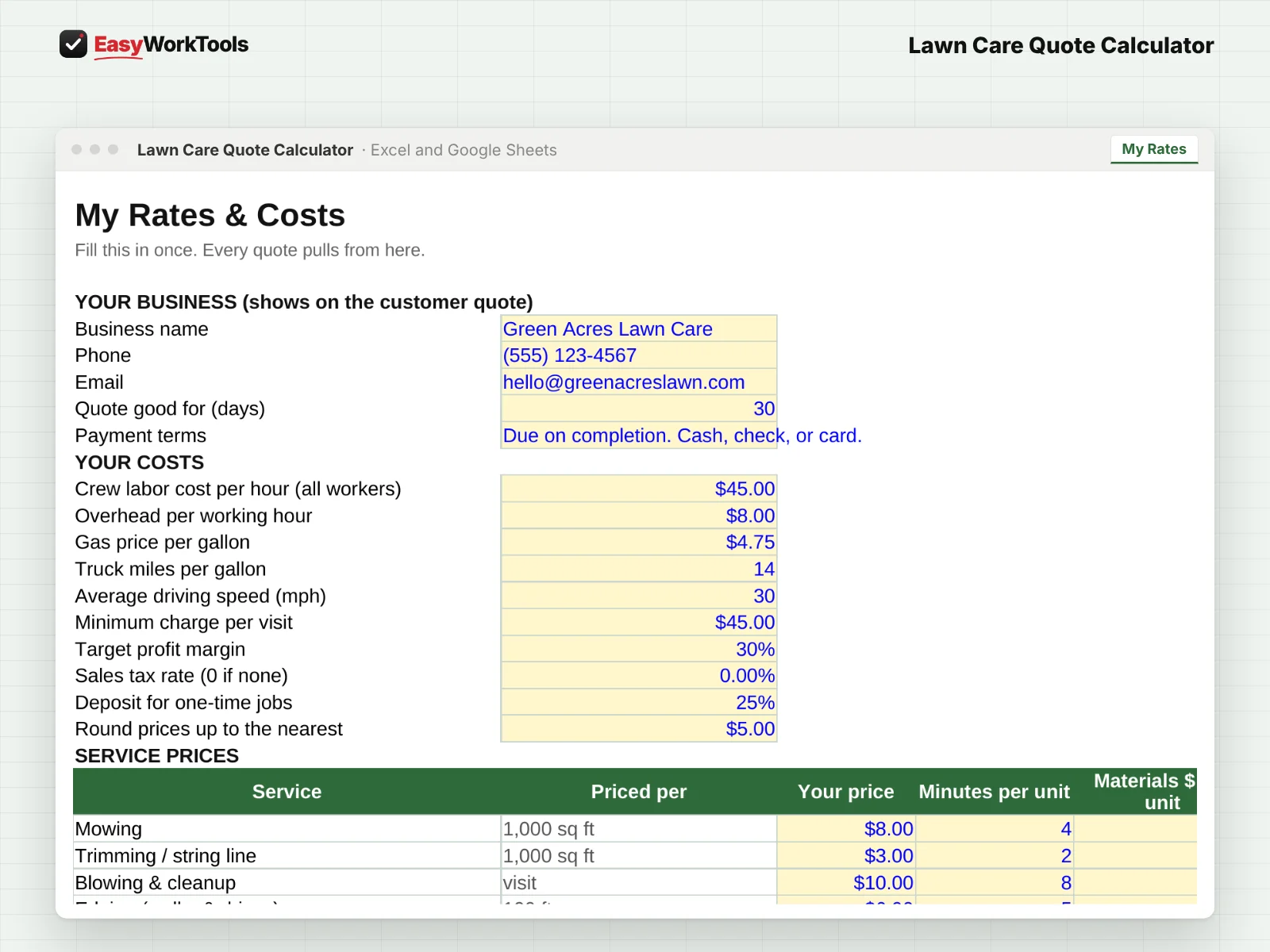
- Open the My Rates tab. Fill in your business name, phone, email, how many days a quote is good for, and your payment terms. These show on every customer quote.
- Fill in Your Costs: crew labor per hour, overhead per working hour, gas price, your truck's miles per gallon, average driving speed, and your minimum charge per visit.
- Set your target profit margin, sales tax rate (0 if you don't charge it), what to round prices up to, and your deposit for one-time jobs.
- Go down the Service Prices list. For each service, type your price, how long it takes you per unit, any materials cost, and whether it gets sales tax. The example prices are placeholders, not advice. New to pricing? Read the Pricing Help tab first.
2Measure the lawn (about 1 minute)
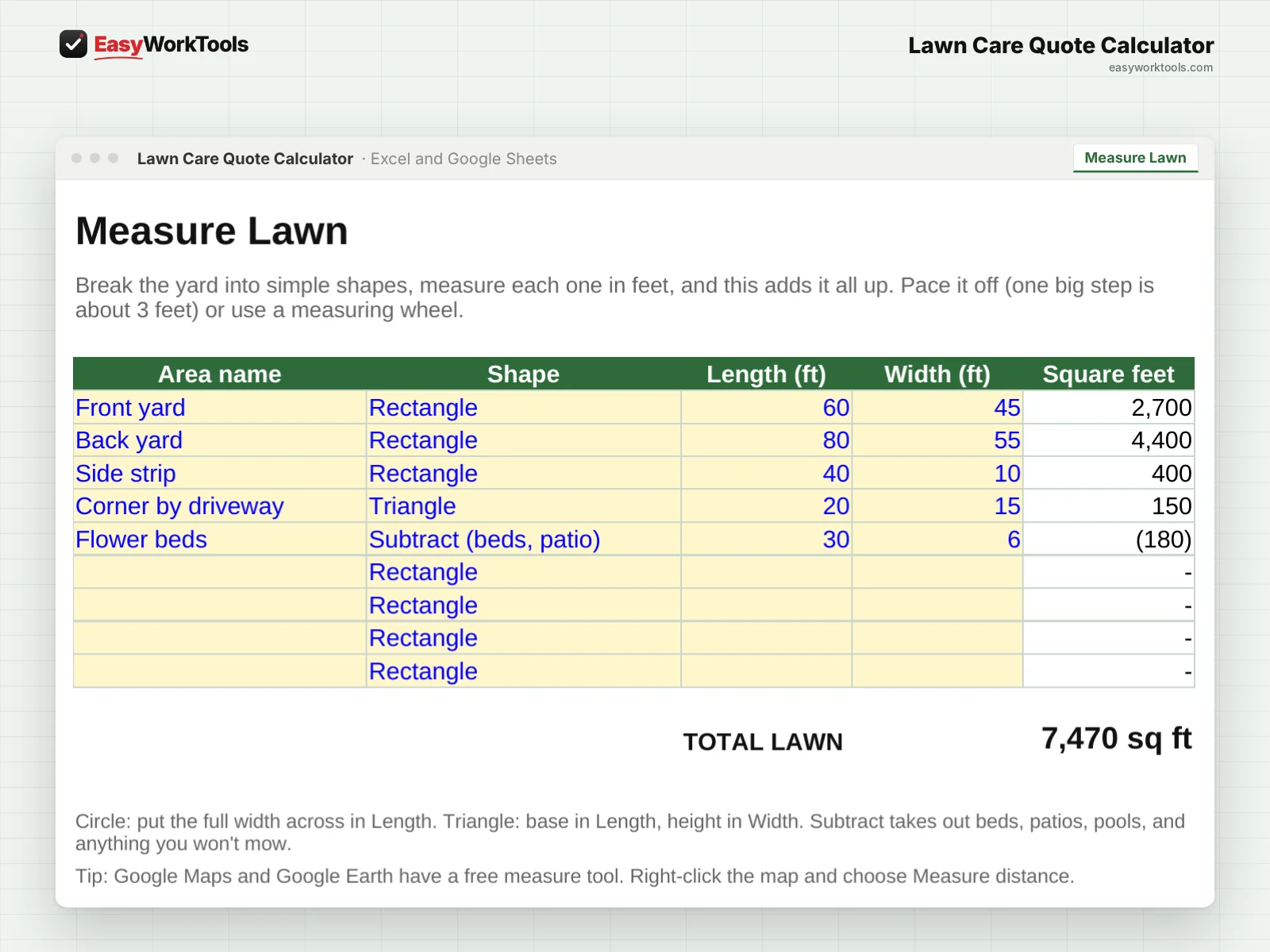
- Open the Measure Lawn tab. Add a line for each part of the yard: front, back, side strip.
- Pick a shape for each line: Rectangle, Triangle, or Circle, and type the length and width in feet. For a circle, put the full width across in Length.
- Add a Subtract (beds, patio) line for flower beds, patios, and anything else you won't mow.
- The total lawn size appears at the bottom and carries over to the Quote tab. Pace it off (one big step is about 3 feet), use a measuring wheel, or use Google Maps' measure tool.
3Price the yard (about 1 minute)
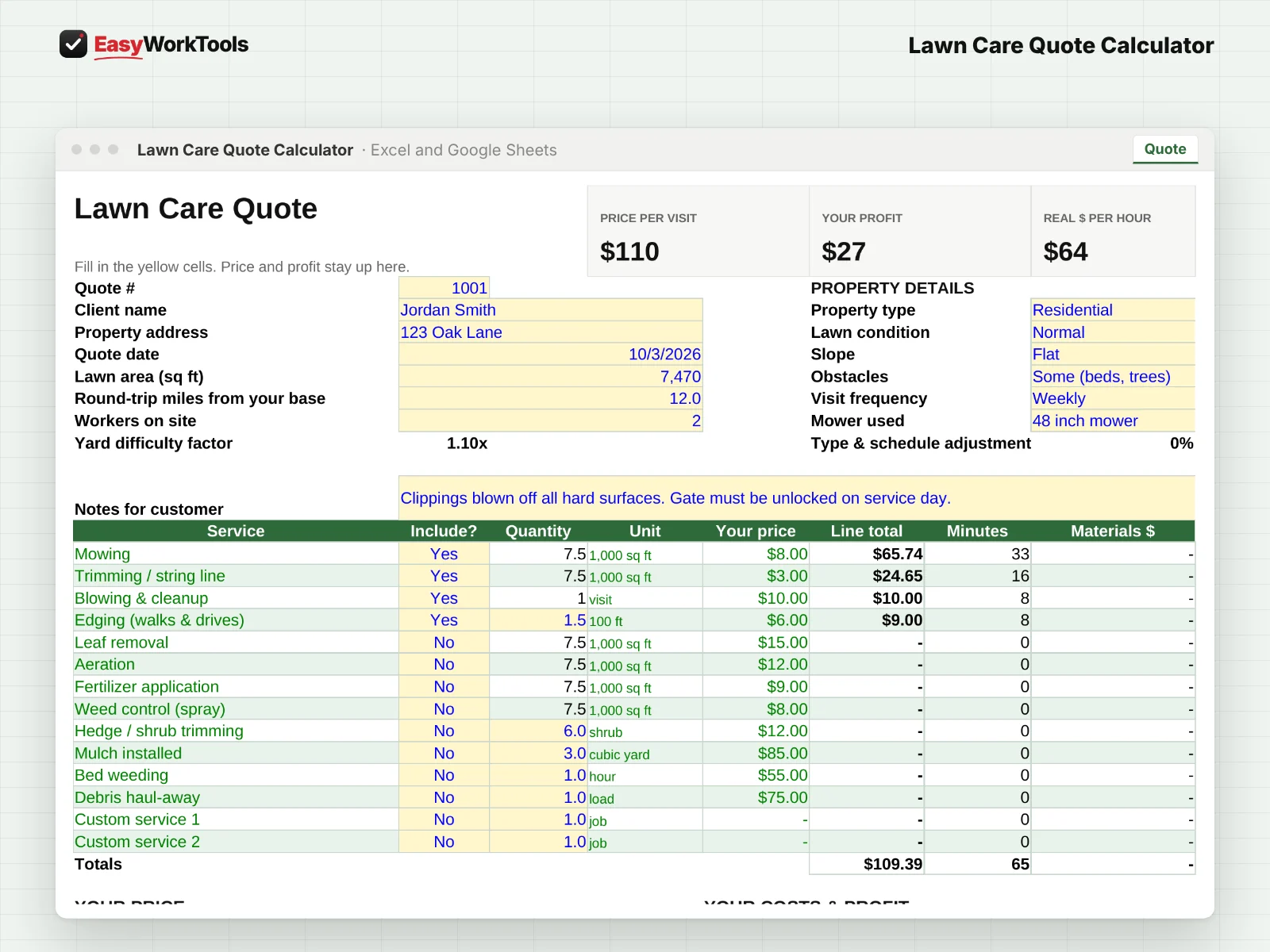
- Open the Quote tab. Fill in the client name, address, round-trip miles, and how many workers you're bringing.
- Pick the Property Details from the dropdowns: residential or commercial, lawn condition (normal, overgrown first cut, or neglected), slope, obstacles, visit frequency, and the mower you'll use.
- Set each service to Yes or No. Lawn-size services like mowing and trimming fill in their own quantity from the lawn size.
- Check the three boxes at the top: Price per visit, Your profit, and Real $ per hour. They stay in view while you scroll.
- Read the profit check line. If you see a ⚠ or ✖, it tells you exactly what to charge instead. See the warnings section below.
4Send the quote
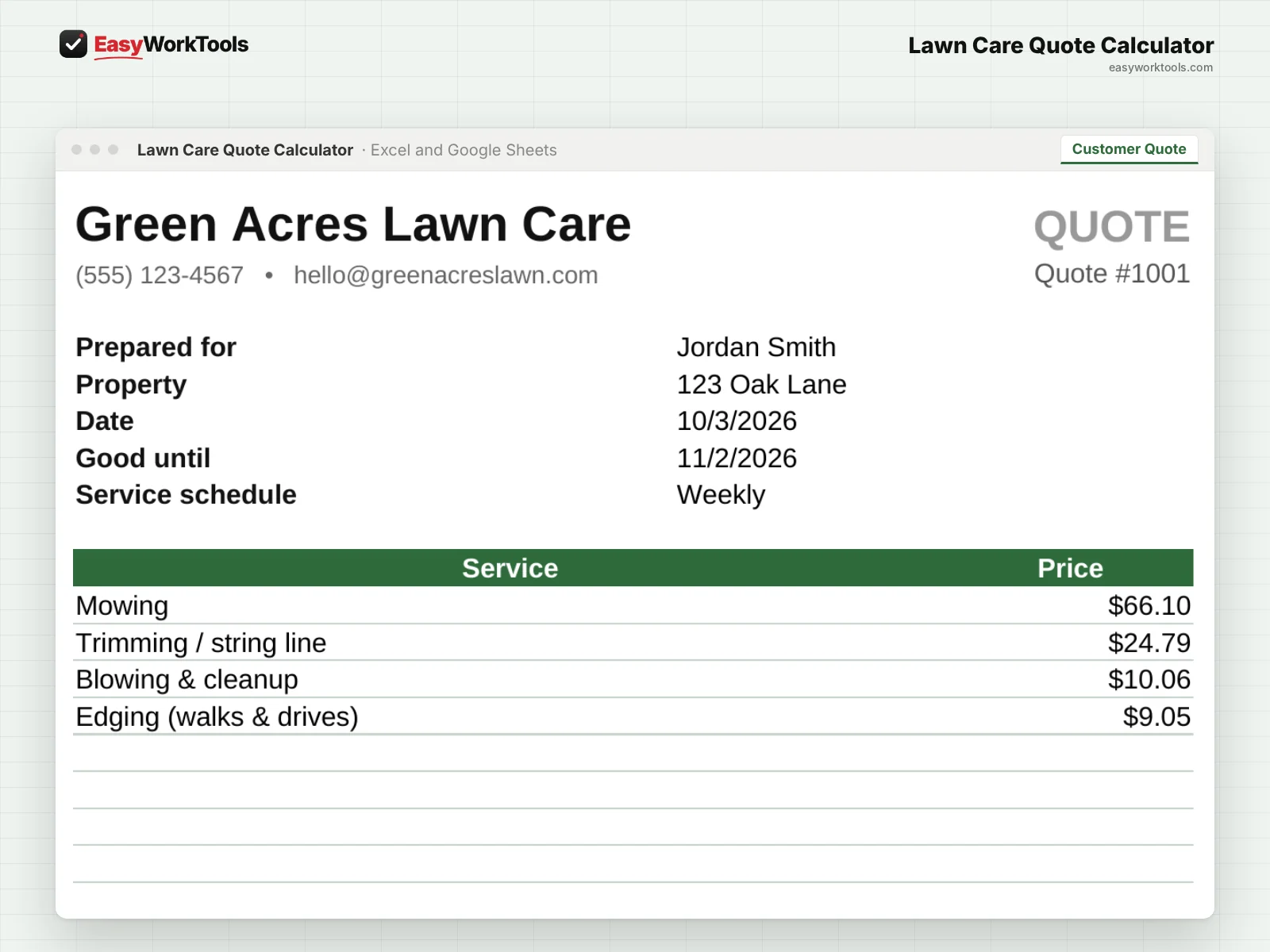
- Open the Customer Quote tab. It fills in with your business info, the services, the price per visit, and season totals for recurring work.
- Print it, or save it as a PDF to email or text. In Excel: File, then Print, then pick PDF. In Google Sheets: File, then Download, then PDF.
- Your costs, margins, and hourly numbers never show on the customer quote. Only the prices do.
What the messages mean
The tool watches your numbers and tells you in plain words when something needs a look. Here's every message you might see.
What to do: Fill in the Measure Lawn tab, or type the square feet straight into the Quote tab.
What to do: Raise the price to the amount shown, or check your service prices and costs on My Rates.
What to do: Charge at least the amount shown. Double check the lawn size first, since a typo is the most common cause.
What to do: Nothing to fix. That's your minimum doing its job.
What to do: Make sure the time on site looks right before you send the quote.
Using Google Sheets or your phone
- To use Google Sheets, upload the file to Google Drive, then right-click it and choose Open with, then Google Sheets.
- Dropdowns, colors, and every calculation work the same in Google Sheets.
- On a phone, the Google Sheets and Excel apps work for quick changes. For setup and printing, a computer is easier.
- Want to start fresh? Type over the yellow example cells. Don't delete rows, since other tabs may be reading them.
Common questions
How do weekly, biweekly, and monthly prices work?
Pick the visit frequency on the Quote tab. The tool counts the visits in your season and shows the season total and monthly payment on the customer quote.
Can I save a quote and start a new one?
Yes. Save a copy of the file for each customer (File, then Save As), then type over the details for the next yard.
What mower size should I pick?
The one you'll actually use on that yard. A 21 inch push mower takes far longer than a 60 inch zero-turn, and the price reflects it.
Quick reference from the Start Here tab
Welcome
Quoting a yard is the hardest part of starting out. Price too low and you work for free. Price too high and you lose the job. This tool does the math for you, so every quote covers your time, your gas, your gear, and still leaves you real profit.
Setup (About 10 Minutes, One Time)
Open 'My Rates'. Add your business name and contact info, your costs, and what you charge for each service.
Not sure what to charge yet? Read the 'Pricing Help' tab first. It walks you through it.
Quoting A Property (About 2 Minutes)
Measure the yard on the 'Measure Lawn' tab, or type the square feet straight into the Quote tab if you already know it.
Open 'Quote'. Enter the client, how far it is from you, and how many people you're bringing.
Pick the property details: residential or commercial, lawn condition, slope, obstacles, and how often you'll visit.
Set each service to Yes or No. Lawn-size services fill in their own quantity.
Check the profit box on the right. If you see a warning, the tool tells you what to charge instead.
Open 'Customer Quote', then print it or save it as a PDF to send to your client. Your costs never show on it.
Handy Tips
The example numbers are there so you can see how it works. Type right over them.
To save each client's quote, right-click the Quote tab and duplicate it, or use File > Save As with the client's name.
Measure lawns from your phone with the free measure tool in Google Maps or Google Earth. Add about 10% if the edges are messy.
Using Google Sheets? Upload this file to Google Drive and open it with Google Sheets. Everything works the same.
Your License
This file is licensed to one business, including everyone who works there. Please don't share, resell or post it online.
© 2026 EasyWorkTools. All rights reserved. easyworktools.com
Every tab
This file has 6 tabs, in this order:
- Start Here
- Measure Lawn
- My Rates
- Quote
- Customer Quote
- Pricing Help