Before you start
- Your download is a zip with two files. Double-click it to open it. Start with the one marked with examples to see how everything works, then use the blank one for your business.
- Open the file in Microsoft Excel. Using Google Sheets? Upload it to Google Drive, then open it with Google Sheets.
- Start on the Start Here tab. It has the same steps, right inside the file.
- The sample data is there so you can see how everything works. Type over it with your own when you're ready.
Here's how to set it up once, then spend a minute a week keeping your equipment out of the shop.
1List your equipment (about 5 minutes)
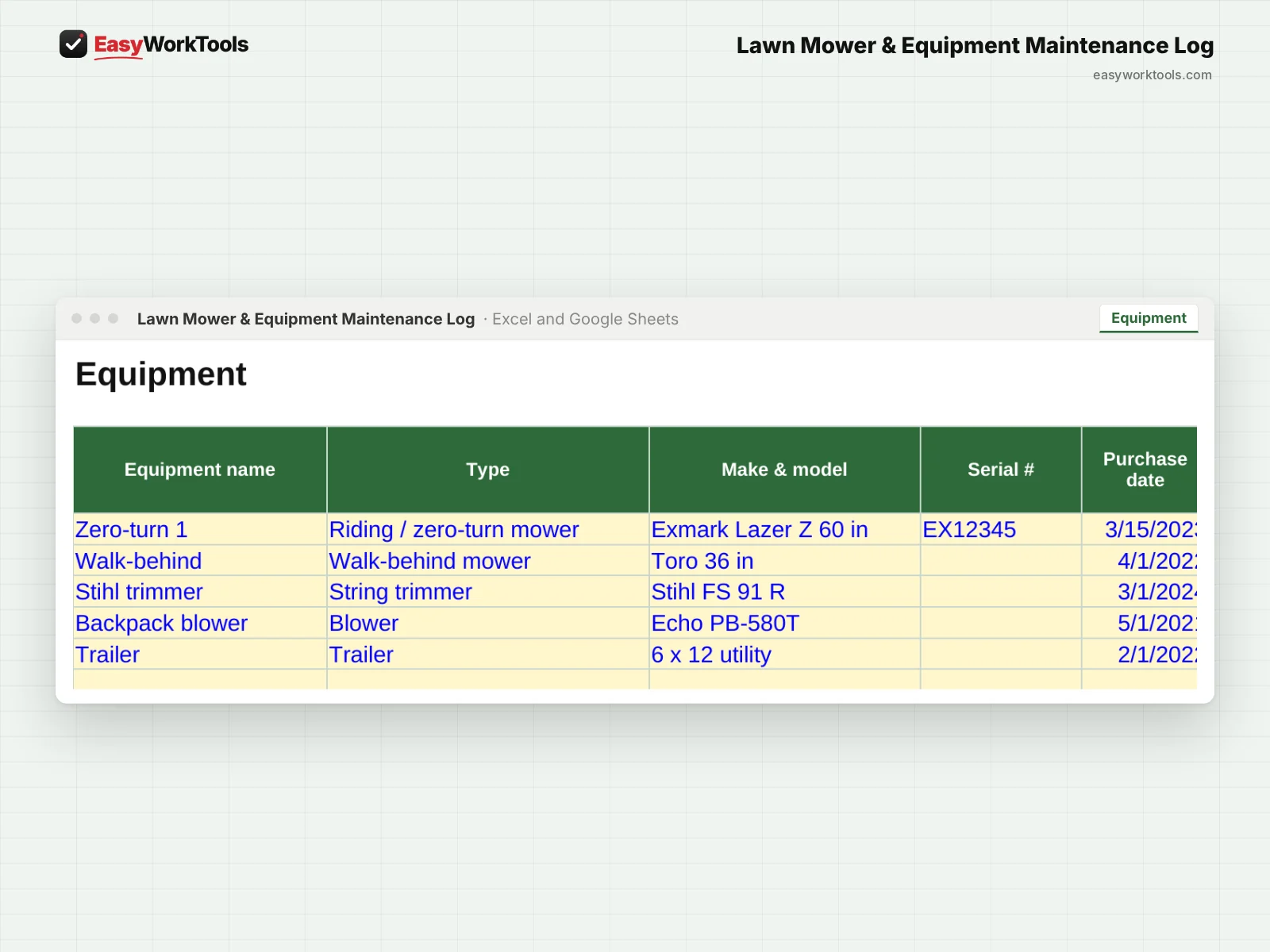
- Open Equipment and type over the examples with your own: mowers, trimmers, blowers, edgers, trailers, even the truck.
- For each one, fill in the type, make and model, purchase date and price, and what it would cost to replace today. The replacement cost powers the repair-or-replace check.
- Add the warranty end date if it has one. The Dashboard warns you 60 days before it runs out, so you can get anything fixed while it's still covered.
2Build the maintenance plan (about 5 minutes)
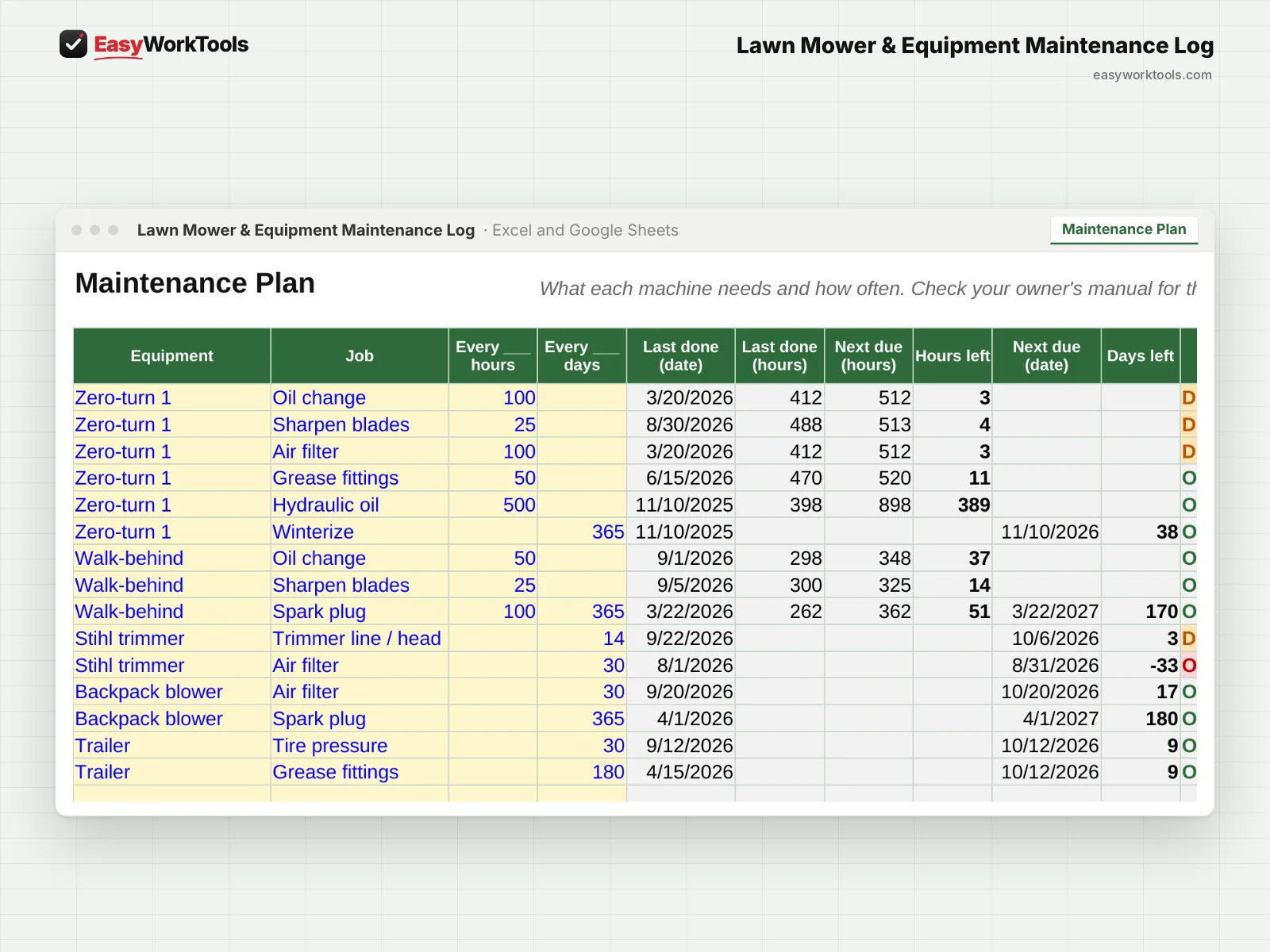
- Open Maintenance Plan. Add a line for each job a machine needs, like an oil change or sharpening blades.
- Set how often: every so many hours, every so many days, or both. Whichever comes first triggers the reminder.
- No hour meter on something? Leave hours blank and use days, like every 30 days.
- Done some of these jobs recently? Add them on the Log so the countdown starts from the right place.
3Log maintenance and repairs (30 seconds each)
- Open Log and add one line whenever you do maintenance, make a repair, or just check the hour meter.
- Fill in the date, the machine, the hour meter reading, the job, and the cost. Note where you bought parts. It's handy for warranty claims and taxes.
- Log an Hour reading every week or two, even with no work done. It keeps the hours countdown accurate.
4Check what's due (every week)
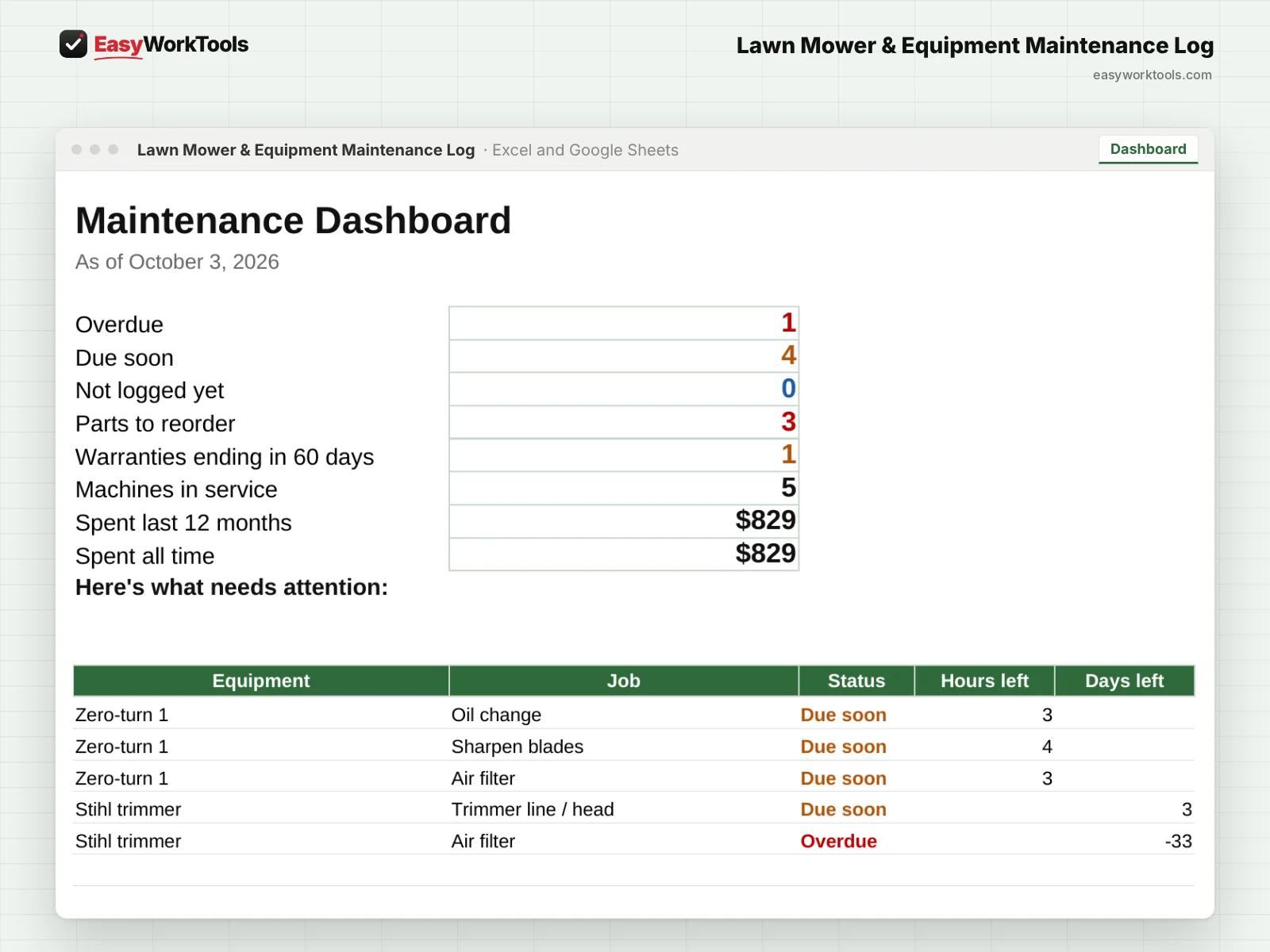
- Open the Dashboard. Red means overdue, orange means due soon.
- The list under Here's what needs attention shows each job with hours and days left.
- The Dashboard also counts parts to reorder, warranties ending soon, and what you've spent this year and all time.
5Keep parts on hand
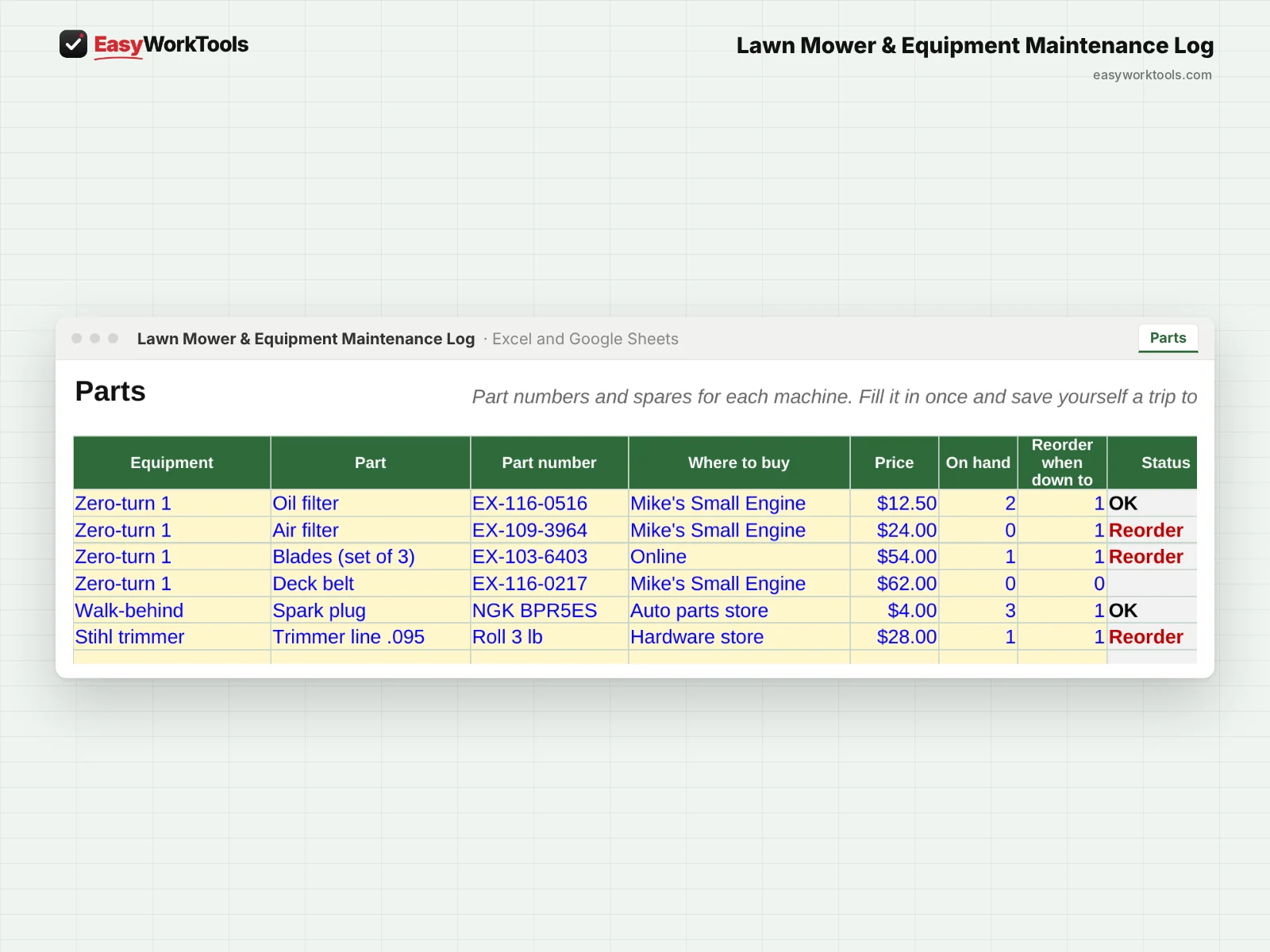
- Open Parts and list each machine's filters, blades, belts, plugs, with part numbers and where you buy them.
- Set how many you have and when to reorder. The status turns to Reorder when you're running low.
What the messages mean
The tool watches your numbers and tells you in plain words when something needs a look. Here's every message you might see.
What to do: Type the hour meter number on that Log line.
What to do: Check the date. Usually it's the wrong year or month.
What to do: Add the date the work was done.
What to do: Add the last time you did it on the Log, even a rough date.
What to do: Look at the Check column on Equipment and decide whether to keep repairing it or replace it.
What to do: Nothing to do.
Using Google Sheets or your phone
- To use Google Sheets, upload the file to Google Drive, then right-click it and choose Open with, then Google Sheets.
- Dropdowns, colors, and every calculation work the same in Google Sheets.
- On a phone, the Google Sheets and Excel apps work for quick changes. For setup and printing, a computer is easier.
- Want to start fresh? Type over the yellow example cells. Don't delete rows, since other tabs may be reading them.
Common questions
My trimmer doesn't have an hour meter. Does that work?
Yes. Leave hours blank and set its jobs by days instead.
Can I add my own jobs and equipment types?
Yes. The lists are on the Settings tab, and you can edit or add to them.
Quick reference from the Start Here tab
Welcome
A mower that dies mid-season costs you a day of income plus the repair. This log tells you what's due before it breaks, tracks every dollar you spend on each machine, and shows you when it's time to replace something instead of fixing it again.
Setup (About 10 Minutes)
Open 'Equipment'. List every machine you own: mowers, trimmers, blowers, edgers, trailers, even the truck.
Open 'Maintenance Plan'. For each machine, list the jobs it needs and how often, by hours, by days, or both. Your owner's manual has the right numbers.
If you've done some of those jobs recently, add them on the 'Log' so the countdown starts from the right place.
Every Week
Add a line on 'Log' whenever you do maintenance, make a repair, or just check the hour meter.
Glance at 'Dashboard'. Red means overdue, orange means due soon.
Handy Tips
No hour meter on a trimmer or blower? Leave hours blank and use days instead, like sharpening every 30 days.
Log an 'Hour reading' every week or two, even with no work done. It keeps the hours countdown accurate.
Fill in the Parts tab once with your filter, blade, belt, and plug numbers. No more digging for the manual at the parts counter.
Keep receipts in one folder and put the store name in Notes. Handy at tax time and for warranty claims.
Using Google Sheets? Upload this file to Google Drive and open it with Google Sheets. Everything works the same.
Your License
This file is licensed to one business, including everyone who works there. Please don't share, resell or post it online.
© 2026 EasyWorkTools. All rights reserved. easyworktools.com
Every tab
This file has 7 tabs, in this order:
- Start Here
- Dashboard
- Equipment
- Maintenance Plan
- Log
- Parts
- Settings