Before you start
- Your download is a zip with two files. Double-click it to open it. Start with the one marked with examples to see how everything works, then use the blank one for your business.
- Open the file in Microsoft Excel. Using Google Sheets? Upload it to Google Drive, then open it with Google Sheets.
- Start on the Start Here tab. It has the same steps, right inside the file.
- The sample data is there so you can see how everything works. Type over it with your own when you're ready.
Here's how to set it up once and then keep clean records in a minute a day. At tax time, everything is already organized for your tax pro.
1Set it up (one time, about 5 minutes)
- Open the Settings tab. Pick your tax year and set how much of your profit to set aside for taxes. Many owners use 25% to 30% as a starting point. Your tax pro can tell you what fits you.
- Check the IRS mileage rates table. 2026 is already in there, including the July 1 change to 76 cents, and each trip gets the right rate for its date.
- Add your vehicles, your regular routes under Saved Trips, and anyone you pay as a contractor.
- Write down each vehicle's odometer on January 1, and add the ending number at year end. That gives you your business use percentage.
2Log a day of driving (30 seconds)
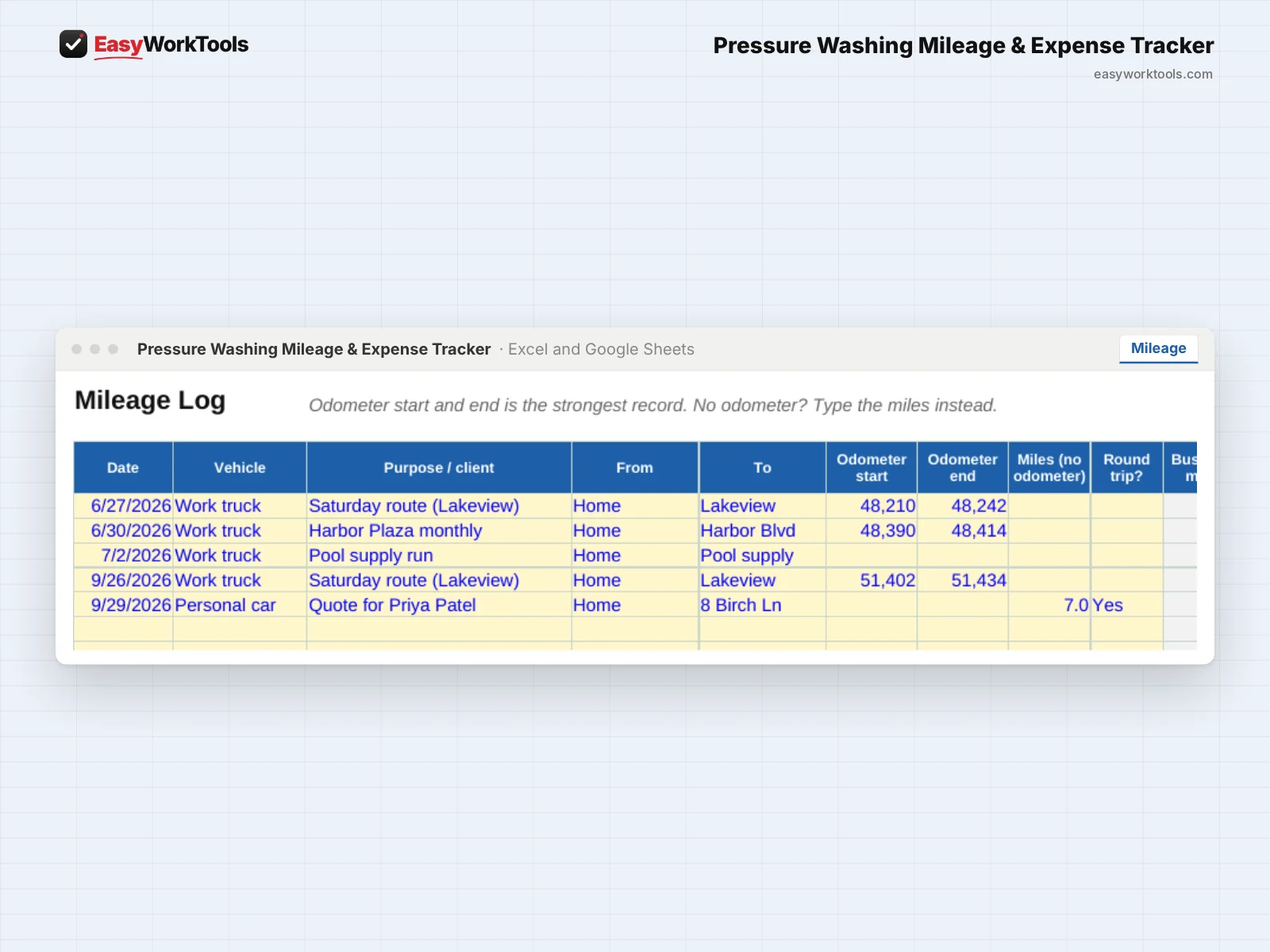
- Open Mileage and add one line: the date, the vehicle, and the purpose or client. The IRS wants the purpose, so the tool reminds you if it's blank.
- Type the odometer start and end. That's the strongest record. No odometer reading? Type the miles in the Miles column instead.
- Driving a usual route, like your Tuesday route? Pick it from the Purpose list and the miles fill in for you. Mark Round trip if you drove there and back.
3Log a receipt (30 seconds)
- Open Expenses and add one line: date, store, category, what it was for, and the amount.
- Pick the category from the list. Fuel for your pressure washer's engine is its own category, separate from truck fuel, so it counts no matter which mileage method you use.
- Use Business use % for things you also use personally, like your phone. The deductible part figures itself out.
- Snap a photo of the receipt and set Receipt saved? to Yes. The Dashboard reminds you about any receipts you haven't saved.
- Doing a big job or a commercial account? Put the customer's name in Job or customer and see what that customer really earned you on Profit by Customer.
4Log a payment (20 seconds)
- Open Income and add one line for every payment: date, client, what for, amount, and how they paid.
- If you charged sales tax, put the tax part in Sales tax included. It's kept out of your income so you don't pay income tax on money that belongs to the state.
5See which customers really pay off
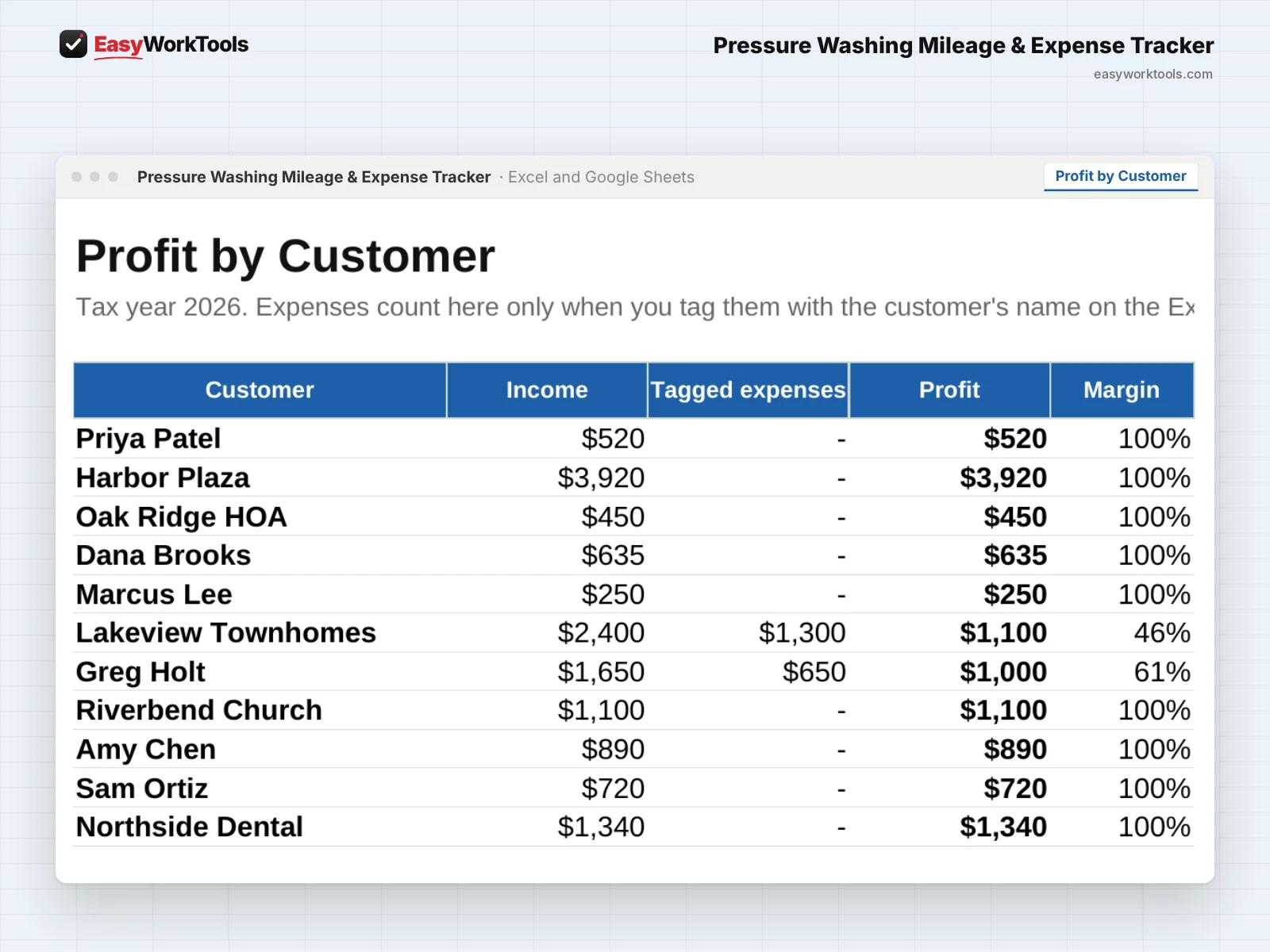
- Tag expenses with a customer's name in the Job or customer column on Expenses.
- Open Profit by Customer. It shows income, tagged expenses, profit, and margin for every customer, so you can see which accounts are worth keeping.
6Check your numbers and get ready for tax time
- Look at the Dashboard once a month. It shows income, deductions, miles, estimated profit, and what to set aside for the next quarterly tax payment.
- The Dashboard also compares the standard mileage rate with your actual truck costs, so you can see which method looks better so far.
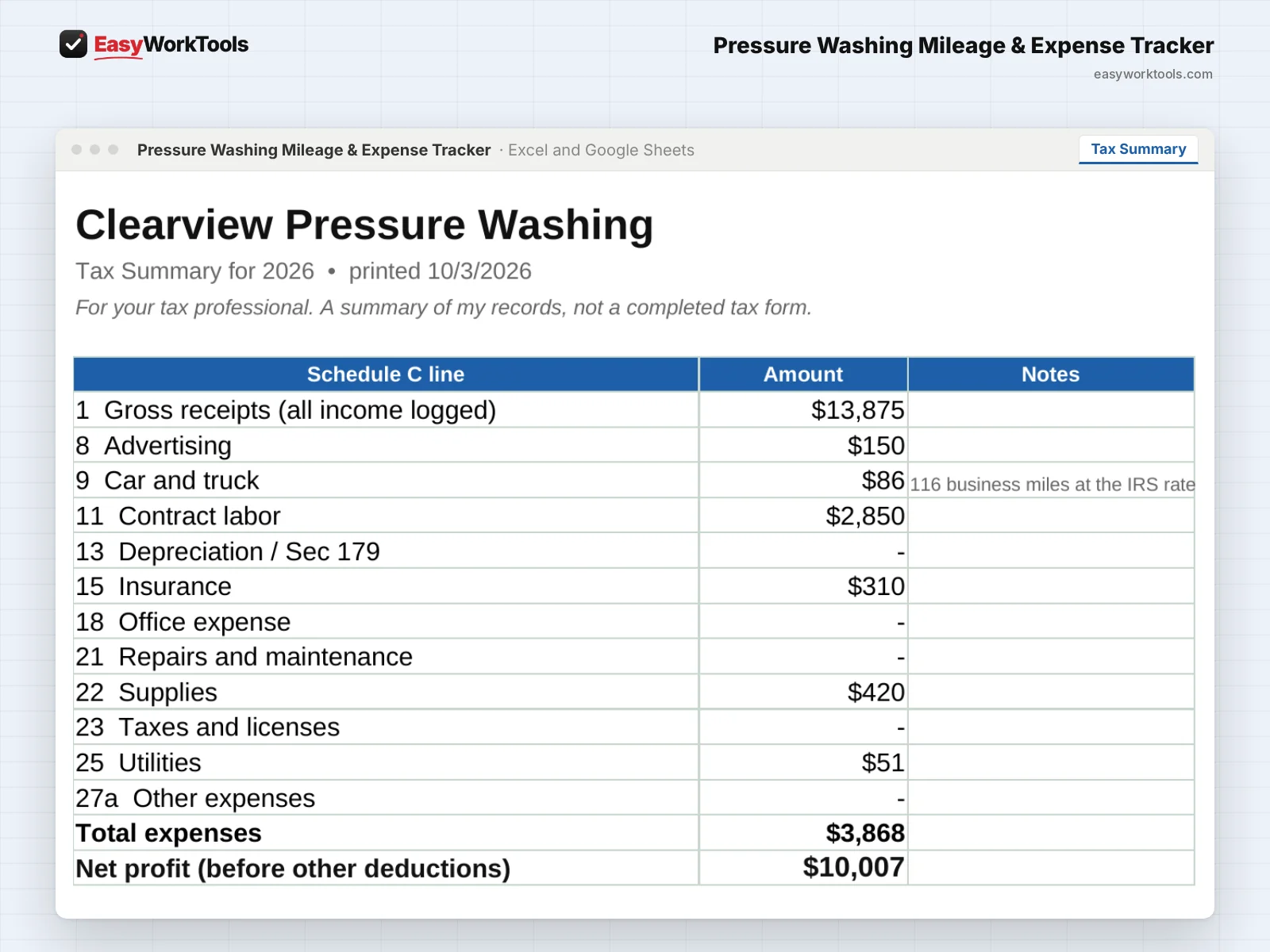
- At tax time, open Tax Summary and print it or save it as a PDF for your tax pro. It's organized by Schedule C line.
- This is a record-keeping tool, not tax advice. The set-aside is a planning estimate. Always check your totals with a tax professional before you file.
What the messages mean
The tool watches your numbers and tells you in plain words when something needs a look. Here's every message you might see.
What to do: Type where you went and why. The IRS expects it for every business trip.
What to do: Check the two odometer numbers. Usually two digits got swapped.
What to do: Check the date, or add that year's rate on Settings.
What to do: Take a photo of the receipt and set Receipt saved? to Yes.
What to do: Pick the category from the dropdown instead of typing it.
What to do: Look down the Check column on each tab and fix what it points out.
What to do: Ask your tax pro which method to use. You can usually use one or the other, not both.
What to do: Check the two numbers on that Income line.
Using Google Sheets or your phone
- To use Google Sheets, upload the file to Google Drive, then right-click it and choose Open with, then Google Sheets.
- Dropdowns, colors, and every calculation work the same in Google Sheets.
- On a phone, the Google Sheets and Excel apps work for quick changes. For setup and printing, a computer is easier.
- Want to start fresh? Type over the yellow example cells. Don't delete rows, since other tabs may be reading them.
Common questions
Can I use it for more than one truck?
Yes. Add each vehicle on Settings and pick the vehicle on each mileage line.
Should I use standard mileage or actual costs?
You can usually use one or the other, not both. The Dashboard shows which looks better so far, but ask your tax pro before you choose.
Quick reference from the Start Here tab
Welcome
Every business mile and every receipt you don't track is money you overpay in taxes. Log them here as you go, and at tax time you'll have clean totals by category, your mileage deduction, and a running estimate of what to set aside, all in one place.
Setup (About 5 Minutes)
Open 'Settings'. Pick your tax year, check the IRS mileage rates, and set how much of your profit you want to set aside for taxes.
Add your vehicles, your regular routes under Saved Trips, and anyone you pay as a contractor.
At the start of the year, write down each vehicle's odometer. At year end, add the ending number. That gives you your business use %.
As You Go
Every work day: one line on 'Mileage'. Odometer start and end is best, or just type the miles.
Every receipt: one line on 'Expenses'. Snap a photo of the receipt and mark it saved.
Every payment from a client: one line on 'Income'. If you charged sales tax, put the tax part in its own column.
Big account? Tag its expenses with the customer name and check Profit by Customer.
Driving your usual Tuesday route? Pick it from the Purpose list and the miles fill in for you.
At tax time, print 'Tax Summary' or save it as a PDF and hand it to your tax pro.
Check 'Dashboard' monthly. It shows your profit, deductions, and what to set aside for the next quarterly tax payment.
Good To Know
Mileage: you can usually use the IRS standard mileage rate OR your actual vehicle costs (gas, repairs, insurance on the truck), not both. This tracker warns you if it looks like you're doing both.
Fuel for your pressure washer's engine is an equipment expense, not a vehicle expense, so it counts either way. That's why there are two fuel categories.
The IRS sometimes changes the mileage rate mid-year, like it did on July 1, 2026. The Settings tab handles that, so each trip gets the right rate for its date.
The tax set-aside is a rough planning number, not a tax calculation. This tracker isn't tax advice. Share your totals with a tax professional before you file.
Using Google Sheets? Upload this file to Google Drive and open it with Google Sheets. Everything works the same.
Your License
This file is licensed to one business, including everyone who works there. Please don't share, resell or post it online.
© 2026 EasyWorkTools. All rights reserved. easyworktools.com
Every tab
This file has 8 tabs, in this order:
- Start Here
- Dashboard
- Tax Summary
- Profit by Customer
- Mileage
- Expenses
- Income
- Settings